How to Convert a Scanned PDF to Text Without Uploading It
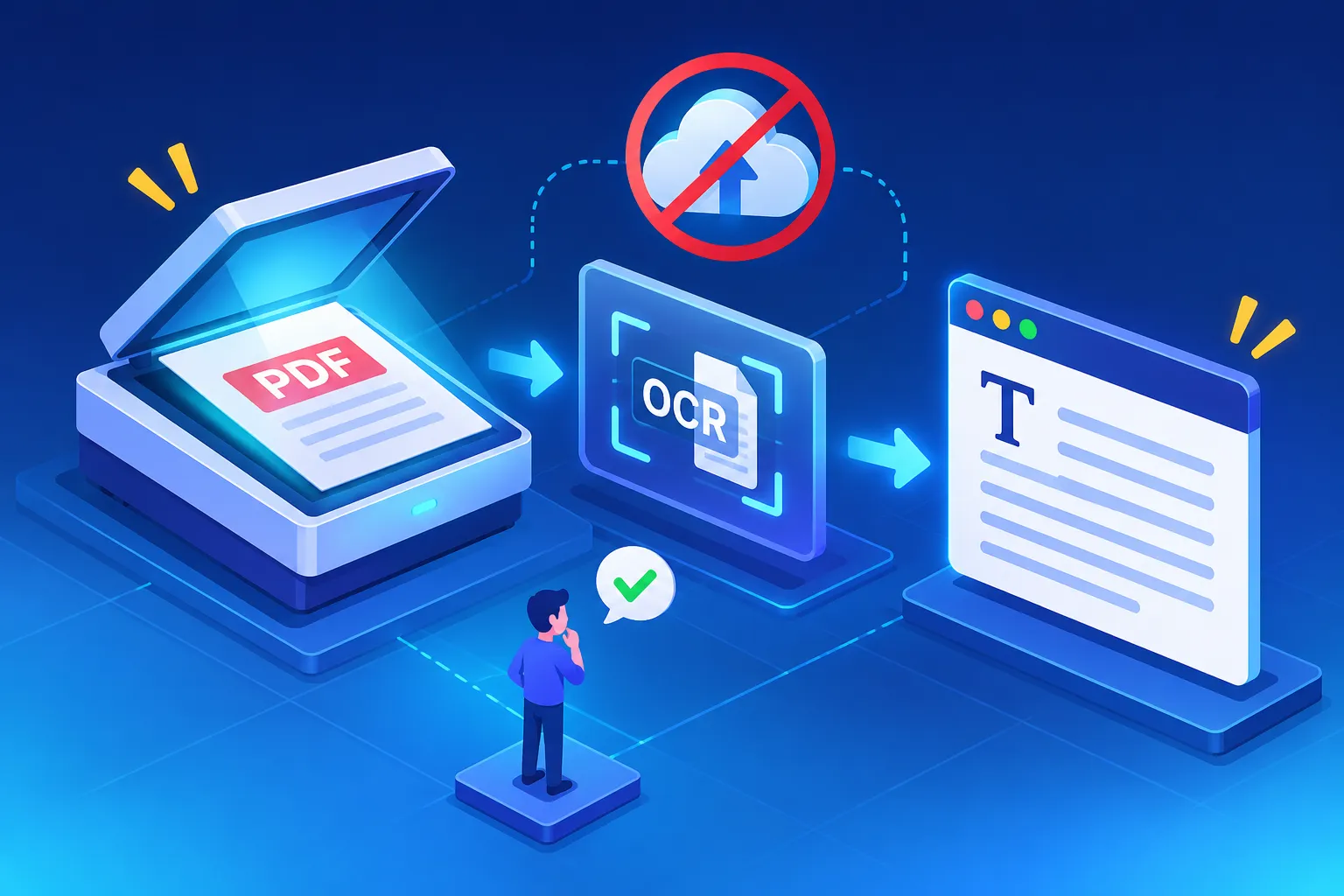
To convert a scanned PDF to text, run OCR (optical character recognition) on it. Pick your output first, either a searchable PDF or editable text, then run OCR and proofread the result. PDF Tura's on-device OCR PDF tool recognizes text from scans and images in your browser with no login and no watermark, so a sensitive scan doesn't have to go to a server.
An image-only scanned PDF won't let you select or search text because it's a picture of a page, not text. OCR reads that picture and produces actual characters, which is how you extract text from a scanned PDF and make it selectable.
Key takeaways
- Choose output first: A searchable PDF keeps the original look. Editable text lets you change the words.
- Use on-device OCR: PDF Tura's OCR tool recognizes text from scans and images in your browser, with no account and no watermark.
- Scan clean: Aim for about 300 DPI or higher, flat pages, and even lighting.
- Test one page: Run a representative page before the full document.
- Proofread key fields: Names, numbers, dates, and dollar amounts get a second read.
Searchable PDF or editable text: which output do you need?
It depends on whether the page has to look the same afterward. A searchable PDF keeps the scan as is. Editable text gives you words you can change.
What a searchable PDF actually is
OCR keeps the original page image and adds an invisible text layer on top, according to searchable-PDF guides from MobiSystems and Nutrient. You can search, select, and copy, but you can't edit the visible page like normal text. This is the right choice for archiving, legal records, and anything that has to look like the original.
What an editable text file gives you
OCR can also pull the characters out into real text, such as a TXT or Word file. You can rewrite, reformat, and reuse the content. The trade-off is that the original layout, fonts, columns, tables, and images may be lost or rebuilt imperfectly.
Quick comparison
| Feature | Searchable PDF | Editable OCR text file |
|---|---|---|
| Original appearance | Preserved | Often changed or lost |
| Search text | Yes | Yes |
| Edit words directly | Generally no | Yes |
| Layout fidelity | High | Variable |
| Best for | Archiving, legal records, reference copies | Editing, republishing, copying content |
Choose a searchable PDF when it must look like the original, and editable text when the words need to change.
How do you convert a scanned PDF to text with PDF Tura's on-device OCR?
Open the OCR PDF tool, add your scan, run it, and proofread the output. None of it requires an account.
Before you start
PDF Tura's OCR runs in your browser and recognizes text from scans and images on your device. There's no account, no login, and no watermark on the output. Privacy details differ from tool to tool, so check each one rather than assuming every online tool works this way.
The steps
- Open PDF Tura's OCR PDF tool in your browser.
- Add the scanned PDF (or use Image to Text for a single photo).
- Run OCR and wait for recognition to finish.
- Review the recognized text, then proofread it against the original.
When to use a related PDF Tura tool
If your document is still on paper, use our Scan to PDF tool. It works with a phone camera or webcam and creates clean grayscale or black-and-white PDFs. If you have a photo of a page, our image tools can crop and resize it before you run OCR.
How do you prep a scan so OCR gets the words right?
Scan at about 300 DPI or higher, keep the page flat and upright, and use a simple layout when you can. OCR has to find clear character shapes, text lines, and reading order first, so clean input and the right settings both matter when you convert a scanned PDF to text.
Resolution and lighting
The University of Pittsburgh's library guide on OCR best practices recommends around 300 DPI for most documents and 400 to 600 DPI for small print. Light the page evenly. Shadows, glare, and bleed-through add noise that causes substituted or missing characters.
Orientation and framing
Keep pages flat, upright, and fully in frame. Fix tilt and rotation before OCR (you can use Rotate PDF if pages are sideways). Upside-down pages, photos taken at an angle, and curved book pages can break line detection.
Layout and fonts
Simple single-column pages with standard fonts read best. Columns, tables, and colored or patterned backgrounds can scramble the reading order even when the words are right.
Run through this checklist before you start:
- Resolution at about 300 DPI or higher
- Page fully in frame, flat, and upright
- Good contrast with no shadows or glare
- Correct language, if the tool you use offers a language setting
- Clean borders with no dark edges
Should you use an online uploader, desktop software, or an on-device tool?
For sensitive scans and quick everyday jobs, use an on-device tool like PDF Tura. Other options fit specific needs, and the table shows how they differ.
How the main options compare
| Option | Where processing happens | Account or login | Best for | Main caveat |
|---|---|---|---|---|
| PDF Tura on-device OCR | In your browser, on your device | None | Sensitive scans and quick everyday jobs | OCR in general is built for printed text, so check handwriting on a sample page |
| Browser-based upload OCR services | On the provider's servers | Varies by service | Quick one-off jobs with non-sensitive files | You depend on the provider's privacy and retention policy |
| Desktop software (Adobe Acrobat Pro, PDF24 Creator, ABBYY FineReader, Microsoft's OCR Text Extractor) | On your computer | Software installation required | Heavy, repeated document conversion | Some tools are platform-specific, such as Windows only |
| Handwriting specialists (such as Transkribus) | Depends on the service | Check the tool | Historical or archival handwriting | Accuracy varies by tool and language |
The upload question
With an upload-based tool, your ID, contract, tax form, or medical record sits on someone else's server. You're relying on their retention policy to protect it. If you do use an online uploader, read its privacy and retention terms first.
On-device OCR avoids sending the file to an OCR provider's server. It doesn't remove every risk, though. Your own device, browser, and downloaded copies still need to be secure.
What about handwriting and unusual languages?
OCR is generally built for printed text. Handwriting accuracy varies a lot by tool and by language. Transkribus is a specialist option for historical handwriting, and ABBYY FineReader covers broad business conversion.
Whatever you pick, test one sample page before you commit to a full document. Confirm the tool supports your specific handwriting language, not just printed text in that language.
How do you check text converted from a scanned PDF for errors and privacy risks?
Compare the output to the original page, read the high-stakes fields twice, and clean up any copies you no longer need. OCR is a draft until a person has checked it.
Proofreading what OCR gets wrong
Start with names, numbers, dates, dollar amounts, and tables. OCR guides such as those from OCR Software and PDF Lab describe typical errors: look-alike substitutions (0 and O, 1 and l), missing characters, split or joined words, and scrambled column order.
Put the output next to the original page and read it side by side. A misread character can still produce a valid word, so a spell-check alone won't catch everything. For totals, recalculate. If the line items don't add up, an OCR error is one possible cause, so check the original page too, since the source figures may be wrong.
A fast accuracy test
Run OCR on one representative page first. If errors pile up, rescan at a higher resolution or fix the rotation, then run it again. A short test saves you from proofreading a bad full run.
Handling the file safely afterward
Delete temporary copies you don't need, and keep the original scan alongside the text version. If the output contains sensitive information you plan to share, use PDF Tura's Redact PDF tool before sending. Add password protection too if the file needs it.
Conclusion: pick the output, scan clean, then proofread
Decide whether you need a searchable PDF or editable text. Scan at 300 DPI or higher and always proofread the key fields: names, numbers, dates, and amounts.
To turn a scan into text privately, run OCR in PDF Tura's browser-based OCR PDF tool. There's no login, no watermark, and the OCR step happens on your device.
Take one scan you've been avoiding retyping and run it now. Test one page, check the result, and you'll see whether the output works for you.
Frequently Asked Questions
Why can't I select text in my scanned PDF?
You can't select text in an image-only scanned PDF because the page is a picture, not text. OCR recognizes the characters in that picture so you can search, select, and copy them.
Can OCR preserve the original appearance of my document?
Yes, a searchable PDF preserves your scan's original appearance. OCR adds an invisible text layer, so you can search and copy text without changing the visible page.
What should I do if my OCR results have a lot of errors?
You can rescan at a higher resolution or fix the page rotation, then run OCR again. Test one representative page before processing the full document, and compare the result with the original.
How should I protect sensitive OCR output before sharing it?
You can use our Redact PDF tool to remove sensitive information before sharing your output. Add password protection if the file needs it, and delete temporary copies you no longer need.