Smallpdf Alternative Without Daily Limits: What to Look For
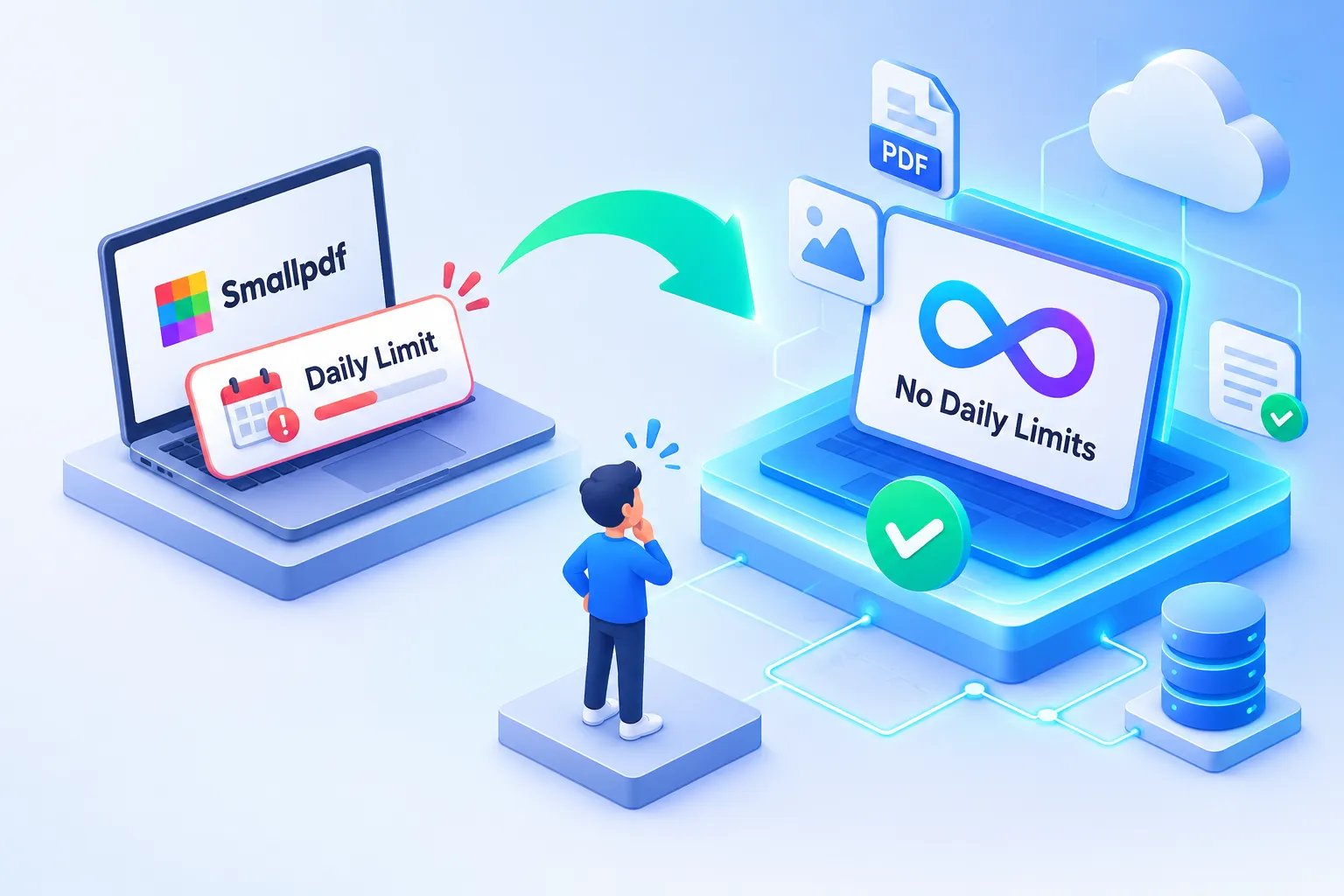
The best Smallpdf alternative is the one that removes what pushes people away: daily task caps, account prompts, and paywalled output. For everyday jobs like merging, compressing, splitting, converting, and fill and sign, a free browser tool with no login and no added watermark covers most people. PDF Tura, our own tool, is built for that: 143 free tools, no account, no watermark, and most tools process your files in the browser instead of uploading them. Heavy text editing of existing PDFs and enterprise workflows still point toward paid desktop editors.
Below, we cover the specific frustrations, a seven-point checklist, a comparison table, and a quick way to match a tool to your situation.
Key takeaways
- Limits matter most: A daily or hourly cap interrupts real work. Test for it before you commit.
- Check the output: Look for watermarks, signup prompts, and size caps on a real document.
- Know where files go: Upload tools process on a server. On-device tools don't upload the file for that task.
- Match the tool to the job: Free browser tools handle everyday tasks. Complex edits inside intricate layouts may be better suited to a desktop editor.
- Our pick: PDF Tura, which we publish, for no-login, no-watermark, everyday PDF work.
Why do people leave Smallpdf in the first place?
The common complaints are the daily cap, the account nudge, and uncertainty about where a file goes. None of these is a scandal. They are the cost of "free" showing up at the wrong moment.
The daily task cap that interrupts real work
Smallpdf allows 2 free tasks per day in 2026, according to getPDF. Smallpdf's own pages may frame this as a daily download limit rather than "two tasks."
Imagine you merge your lecture notes, then compress the result for a portal. You go to split out a few pages and hit the wall before the third step. Limits vary by tool and change over time, so check the current free tier before you rely on it.
Account prompts and the upgrade nudge
Free tools work without an account for some workflows, but sustained use and paid features push you toward signing up. Smallpdf Pro costs $15 per month billed monthly, or $120 per year billed annually (SignSend). You hand over an email address and face a subscription decision for a one-page job.
Uploads, watermarks, and paywalled output
Smallpdf generally does not add watermarks to files from its free tools. Its privacy notice says uploaded files are generally deleted within one hour after processing for most tools. Files you save to an account are kept until you delete them.
What frustrates people is limits that surface only after the work is done. Finding out at the download step that you're out of free tasks wastes the time you already spent.
What should you check before choosing a Smallpdf alternative?
Run any candidate through seven checks. They take a few minutes and filter out most of the disappointments.
A seven-point evaluation checklist
- Daily or hourly limits: Run the same task three times in a row. Does anything block you?
- Account requirement: Can you finish a job without an email address?
- Watermark on output: Open the downloaded file and look.
- File size and page caps: Try your largest real document, not a sample.
- Where files are processed: Read the privacy notes for the specific tool you're using.
- Weekly tools: Confirm it covers the merge, compress, OCR, sign, redact, or convert work you do.
- Device support: Open it on the laptop or phone you actually use.
Run a short test before you commit
- Pick a nonsensitive document, such as an assignment or a sample report. Avoid leases, tax forms, or anything private while you're still testing an unfamiliar tool.
- Run your most common task back to back, at least four times.
- Open the output and check for a watermark.
- Note any signup prompt or size cap along the way.
Two runs won't reveal every limit. Hourly caps, like Sejda's 3 tasks per hour, only show up on the fourth attempt.
How do the main Smallpdf alternatives compare?
The table below puts PDF Tura next to the usual alternatives on free-tier limits, account needs, and file handling.
Comparison table: limits, signup, and file handling
| Tool | Free-tier limits | Account needed | Where files are processed | Best for |
|---|---|---|---|---|
| PDF Tura | No login, no paywall, no watermark; 143 free tools | No | Most tools in your browser | Everyday merge, compress, convert, sign, redact |
| iLovePDF | Per-tool limits, such as about 15 MB for Office conversions | Not for basic tools | Uploaded to its service | Closest budget-friendly Smallpdf replacement |
| Sejda | 3 tasks per hour; files up to 50 MB or 200 pages | No signup | Online tools upload; desktop app available | Occasional editing |
| PDF24 | Free, ad-supported; no stated task limit | No | Online tools upload; Windows desktop app works offline | Free Windows offline work |
| Adobe Acrobat | Advanced editing, OCR, and e-signatures need a paid plan | Adobe ID generally required | Online tools upload; desktop apps process locally | Professional editing and business workflows |
| PDFgear | Free desktop and mobile options | Generally none for basic use | Desktop app on your device | Free desktop power users |
The iLovePDF and Sejda limits come from comparisons by WPS and Scanreviver. Acrobat's paid features start around $14.99 per month, according to findalternative.to. Prices and limits change by country, billing cycle, and tool, so confirm them before you pay.
Where the free browser tools fall short
PDF Tura supports merge, split, compress, convert, OCR, redact, fill and sign, password protect, and scan to PDF. Rewriting existing text inside a complex layout is better suited to a desktop editor.
Does it matter where your PDF gets processed?
Yes, for sensitive files. Where processing happens decides who ever handles your document, even briefly.
Server upload versus on-device processing
Upload tools send your file to a server and process it there. Temporary processing files are typically deleted on a schedule, while saved account files and signature documents can follow different retention periods. Smallpdf states about one hour for processing uploads. iLovePDF says standard processed files are deleted within about two hours, and PDF24 generally deletes uploads and results after about one hour. Exceptions can apply, so check each provider's current privacy policy.
On-device tools process the file in your browser or on your computer, so the file isn't uploaded for that task. Separate cloud-sync or sharing features, if a tool has them, can still move a file elsewhere.
What to verify, in plain language
Don't assume "on-device" covers every feature of any tool, PDF Tura included. We process most tools locally in your browser, so confirm how a specific tool handles your file before using it on something sensitive.
Three questions are worth asking of any tool. Does it separate encryption in transit from encryption at rest? What exactly gets deleted: the upload, the output, backups, download links? And what are the exceptions? iLovePDF, for example, says e-signature documents may be kept for up to five years.
When this matters most
Think tax forms, lease agreements, medical paperwork, and client contracts. Redaction before sharing is the clearest case: you're handling the exact information you're trying to protect.
Which Smallpdf alternative fits your budget, device, and editing needs?
Match the tool to the job, not the other way around. Here's how we'd sort it.
The everyday free-tool user
Students, remote workers, and freelancers can start with PDF Tura. It needs no login and adds no watermark, so you can merge notes, compress email attachments, convert Word to PDF, and sign invoices without stopping to decide on a plan.
Heavy editing, forms, and business workflows
For precise text and image editing, OCR at scale, and legally managed e-signatures, look at Adobe Acrobat or Foxit PDF Editor. Both are paid. Acrobat generally requires an Adobe ID, and Foxit's full product needs registration and payment. That is a fair trade if you edit contracts daily.
Offline, Windows, Mac, and mobile preferences
- PDF24 Creator: free offline work on Windows.
- PDFsam: offline merging and splitting.
- Stirling PDF: self-hosting, with more technical setup.
- Apple Preview: basic Mac tasks like page merging and extraction.
A browser tool like PDF Tura works across Windows, Mac, and mobile devices without an install.
Conclusion: pick the tool that stays out of your way
Limits, prompts, and watermarks are the real cost of "free," so the checklist is your filter for any Smallpdf alternative. For everyday work, we recommend PDF Tura: no account, no watermark, no paywall, and most tools processing in your browser. Keep a paid editor on hand for the rare job that demands one.
Run the test on your next nonsensitive document and keep whichever tool lets you finish without a prompt. Try PDF Tura on that document. There's nothing to sign up for.
Frequently Asked Questions
Does Smallpdf add a watermark to free downloads?
Smallpdf generally does not add watermarks to files from its free tools. You may still encounter a task limit or signup prompt during your workflow.
How can you test a PDF tool for hidden limits?
You can run your most common task at least four times in a row using a nonsensitive document. Open the output to check for a watermark, and note any signup prompts or size caps.
Can you use a PDF tool without uploading sensitive files?
Yes, on-device tools process your file in your browser or on your computer without uploading it for that task. We process most PDF Tura tools locally in your browser, but you should confirm how the specific tool handles your file.
When is a paid PDF editor worth considering?
A paid PDF editor is worth considering when you need precise text and image editing, OCR at scale, or legally managed e-signatures. Complex edits inside intricate layouts may be better suited to a desktop editor.