How to Convert PDF to Word for Free (and What to Expect)
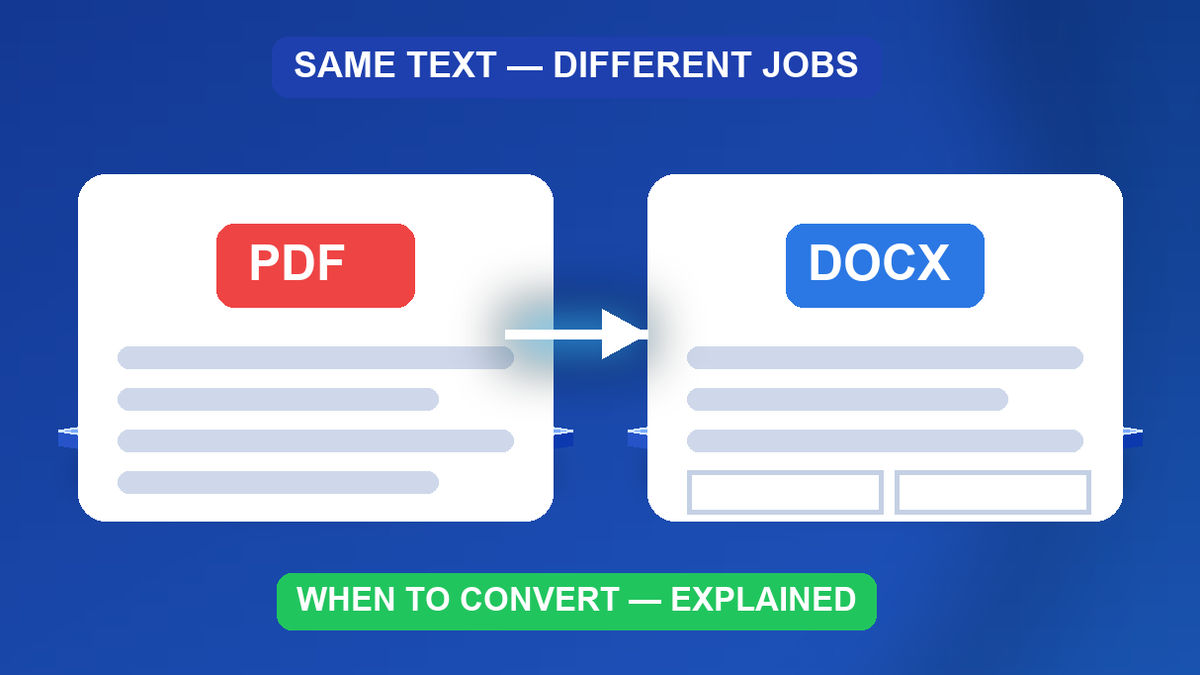
Converting PDF to Word is the task everyone needs before a deadline. The mechanics are easy; knowing what converts well and what does not is what saves the afternoon. Here is the full picture.
How to convert PDF to Word in three steps
- Open PDF to Word and choose the PDF.
- Click Convert to Word. 100% browser-based conversion. PDF Tura reads the text layer directly inside your browser tab and builds a clean
.docxfile locally — your PDF never leaves your device and is never uploaded to a server. - Download the .docx and open it in Word, Google Docs, or LibreOffice. Edit it like any document.
What converts cleanly — and what does not
| Source PDF | Result |
|---|---|
| Typed reports, letters, simple tables | Clean: paragraphs, headings and lists come across editable |
| Embedded images | Text and paragraph structure are extracted cleanly into Word; embedded photos and vector graphics are not copied into the .docx output. If you need pages as images, use PDF to JPG or PDF to PNG |
| Multi-column layouts | Text converts, but column geometry may need tidy-up in Word |
| Scanned pages (photographs of text) | No text layer — run them through OCR PDF first, then convert |
| Complex forms and drawings | Partial: expect to rebuild the odd box or line |
The PDF format does not store "paragraphs" the way Word does — it stores instructions about where ink goes. Every converter on earth reconstructs paragraphs from those instructions, which is why results vary by document. A clean digital PDF converts nearly perfectly; a scanned one has nothing to convert until OCR runs.
Scanned documents: the OCR step
If your PDF came from a scanner or a phone photo, it has no selectable text layer for PDF to Word to extract. Convert the scan first: open OCR PDF, let it recognize the text (English and Bengali are supported), save the searchable PDF, then convert that to Word. The recognized text will be editable, and proofreading a page beats retyping it. If you only need the words — not the layout — PDF to Text gives you the plain text in one step.
After the conversion
Two quick habits save rework: skim the first page against the original before trusting the rest, and check any table — column boundaries are the most common casualty of a good-enough conversion. Everything else (fonts, bold, bullet lists) usually arrives exactly as the PDF had it.
Why some digital PDFs convert into garbled symbols (and how to test in 5 seconds)
Occasionally you will open a PDF that looks razor-sharp on screen — clearly generated by software rather than a scanner — yet converting or copying text produces hollow boxes, random punctuation, or shifted letters. That failure is not random; it comes from how PDF fonts map shapes to meaning.
Inside a PDF content stream, text operators draw glyph IDs (G01, G02, G03) from an embedded font subset rather than raw letters. To let viewers and converters know that G01 represents the Unicode character A (U+0041), the PDF creator must embed an accurate /ToUnicode CMap lookup table alongside the font. Legacy print drivers, custom typesetting tools, and older Indic/Bengali font encoders sometimes omit or scramble that /ToUnicode map: the visual outlines render fine on screen, but the underlying character codes are meaningless.
Before converting a critical report, run a five-second check: highlight one sentence in your PDF viewer (or drop the file into PDF to Text) and read the extracted characters. If the copied text is clean, PDF to Word will extract it cleanly inside your browser. If the copied text is gibberish — or nothing highlights at all — run the file through OCR PDF first. OCR reads the rendered glyph shapes optically in 70+ languages (including English and Bengali) and writes a fresh, standard UTF-8 text layer that converts cleanly to .docx.
Choosing the right extraction tool and tidying the .docx output
Reconstructing a Word file is not always the fastest path to an edit. When you only need to fix a date, typo, or name on an existing page without disturbing layout coordinates, editing the PDF directly in Edit PDF takes seconds and avoids paragraph reflow altogether. Similarly, financial statements packed with multi-column ledgers reconstruct far more cleanly as spreadsheet rows and columns than as Word tab stops.
When you do open a converted .docx in Word or LibreOffice for heavy rewriting, three quick cleanup moves save substantial time:
- Toggle formatting marks (
Ctrl+Shift+8in Word). You will immediately see whether lines end with true paragraph breaks (¶) or manual line breaks (↵) left over from narrow columns, allowing a quick Find-and-Replace cleanup. - Check page headers and footers. Repeated page numbers from a PDF content stream sometimes land as regular body lines between paragraphs; strip them before repaginating.
- Re-export cleanly when finished. Once edits are complete, lock typography and layout back into a fixed-coordinate document using Word to PDF.
| Document challenge | Best tool or workflow | Why this works better |
|---|---|---|
| Fixing two typos or updating a price on an invoice | Edit PDF | Edits text in place on the PDF canvas without reconstructing paragraphs |
| Extracting a 10-column financial ledger or price sheet | PDF to Excel | Maps coordinate columns into native .xlsx cells instead of fragile Word tables |
Sharp digital PDF produces garbled symbols in .docx | OCR PDF → PDF to Word | Replaces broken /ToUnicode font mappings with a clean UTF-8 text layer |
| Landscape presentation deck needing slide-by-slide edits | PDF to PowerPoint | Preserves slide aspect ratio for presenter notes and visual tweaks |
| Pulling unformatted article copy for a CMS or AI prompt | PDF to Text | Extracts pure UTF-8 plain text instantly in your browser with zero markup clutter |
| Saving high-resolution diagrams or photos from a brochure | PDF to PNG or PDF to JPG | Renders full-fidelity page visuals that text-layer .docx extraction omits |
Frequently asked questions
How do I convert a PDF to Word for free?
Open PDF to Word, choose the file, click convert, download the .docx. Free, no sign-up, no watermark, and no daily limit.
Can I convert a PDF to Word without losing formatting?
Clean digital PDFs convert with formatting intact — headings, bold, lists and most tables. Scanned pages and exotic layouts need extra steps (OCR, or manual tidy-up) on every converter, not just this one.
Is the conversion accurate?
Accuracy depends on the source: typed PDFs come across essentially perfect; scanned PDFs need OCR first, after which accuracy is that of the OCR engine (very good on clean scans, weaker on photos with glare or small print).
Is my document uploaded to a server for this?
No — PDF to Word runs directly inside your browser tab. PDF Tura extracts the text layer and builds the .docx file locally on your device, so your PDF is never uploaded to a server.