How to Combine PDF Files in Your Browser
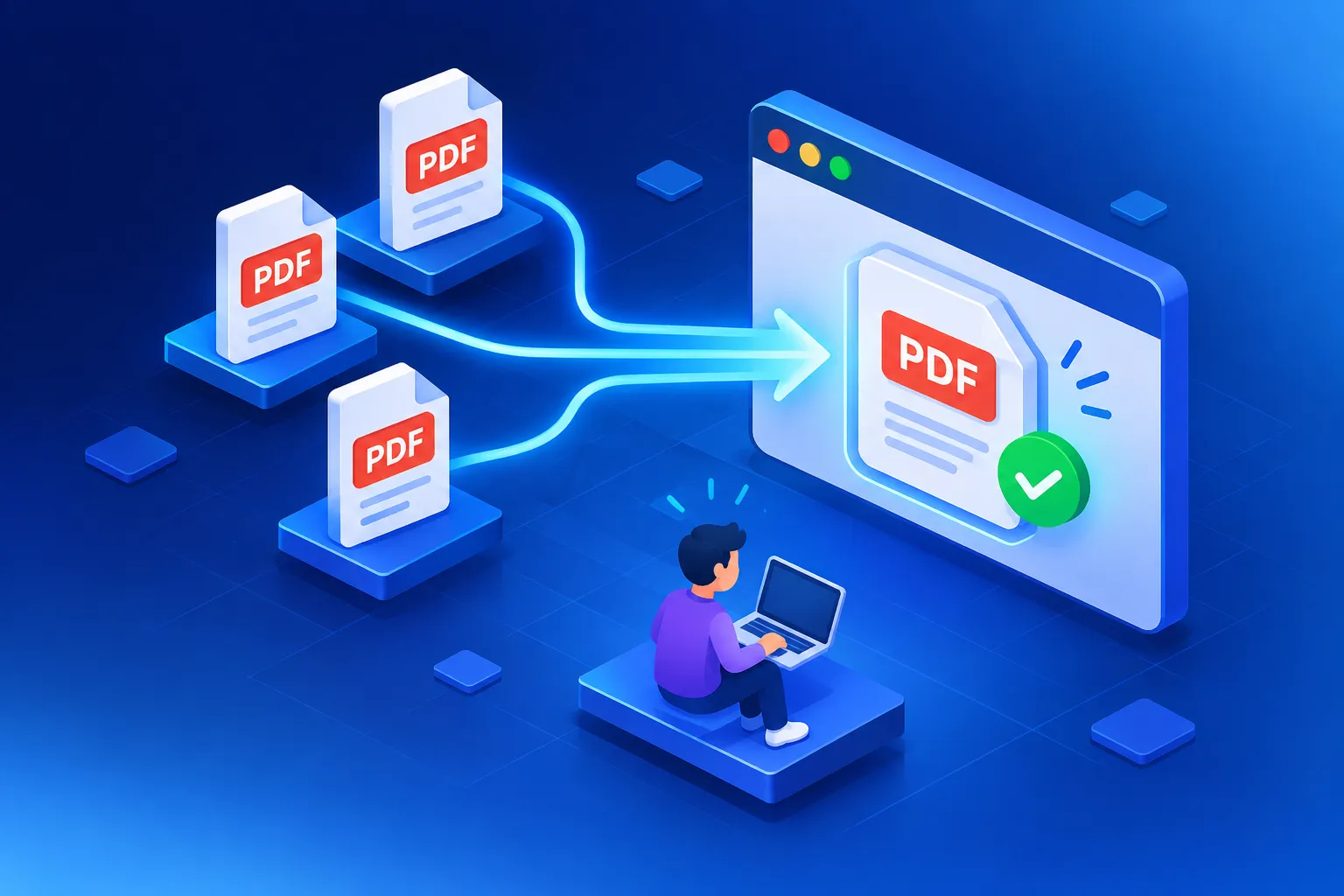
To combine PDF files in your browser, open a browser-based PDF merger, add your files, put them in the right order, click merge, then download the result and scroll through it before you send it. PDF Tura is a free way to do it, with no account, no install and no watermark, and it works on Windows, macOS, Linux, Android and iOS.
The merge itself takes a few clicks. The mistakes happen around it: wrong order, a draft instead of the final, a sideways scan, a file too big for an upload form.
Key takeaways
- Pick by sensitivity: Use a method that processes files locally for private documents, and a browser tool for everything else.
- Name files first: Numbered filenames make the order obvious before you merge.
- Sign last: Signatures on your source files generally won't validate in the merged PDF, so merge first and sign the final file.
- Check before sending: Confirm page count, order, rotation and readability.
- Compress a copy: Aim under 2 MB for application portals and keep the original.
Which way to combine PDFs is easiest and safest for you?
Browser, desktop app or built-in Mac tool?
The easiest route is a browser tool, because nothing needs installing. If you want a free PDF merger that also lets you join PDF files on a phone, a browser tool is the simplest option. Desktop apps such as PDFsam Basic and PDF24 Creator work offline once installed. Mac Preview and Finder merge locally with nothing extra. Windows has no reliable built-in way to merge existing PDFs; "Microsoft Print to PDF" suits printable documents and images, not joining arbitrary PDF files. Windows users usually need a browser tool or an app.
| Method | Where it runs | Sign-up or install | Limits to know |
|---|---|---|---|
| PDF Tura | Browser (on your device) | No account, no install | Free, no watermark, no daily cap |
| Mac Preview or Finder | Offline, built into macOS | Nothing to install | Mac only |
| PDFsam Basic | Desktop app, works offline | Install required, no account | No stated file-size, page or usage limit, according to Rankite |
| Some other online mergers | Their servers, or locally in the browser, depending on the tool | Varies | Sejda lists 50 MB or 200 pages per task, according to Rankite; Smallpdf free use has been reported at about 2 tasks per day, though that limit can change |
Limits on other services change, so verify them on each tool's upload page before you commit a big batch. Check any file-size or batch limits on PDF Tura's Merge PDF page as well.
What should you check before uploading a sensitive file?
Use this rule: if you wouldn't email the document to a stranger, don't upload it to an unknown server. Passports, tax returns, bank statements, signed contracts and anything under an NDA all belong in that category unless the service is explicitly approved.
Check where processing happens first. A tool that processes files locally on your device keeps the PDFs there, while server-side processing creates copies on someone else's system. A browser interface or a desktop app doesn't prove files stay local, so confirm it in the tool's documentation. Then look at retention and deletion, HTTPS during upload, who runs the site, and whether it has a clear, current privacy policy.
Here is how PDF Tura handles it. Most of our tools — including Merge PDF, Compress PDF, and OCR PDF — process files locally in your browser on your device, so your documents aren't uploaded. A few server-assisted tools that require native encryption libraries, such as Protect PDF and Unlock PDF, clearly disclose their server use and delete temporary files automatically. We don't claim every tool is local, and you shouldn't assume it of any platform.
How do you merge PDFs in your browser with PDF Tura, step by step?
Select the right files
Before you add anything, pick only the final versions. Including a draft in a package you then send out is an avoidable error.
Rename the files with numbers so the order is obvious, like 01-cover-letter, 02-resume, 03-certificates. Two edge cases are worth checking first. Depending on the tool, a password-protected file may need to be unlocked with Unlock PDF before merging, and a sideways scan is easiest to rotate with Rotate PDF before you merge, though you can also fix it afterward.
Merge and download in five steps
- Open the PDF Tura Merge PDF tool.
- Add your PDFs.
- Arrange them in the order you want and remove any you don't need.
- Merge them.
- Download the combined file.
There's no signup wall, and PDF Tura works on iOS and Android as well as on desktop browsers.
Did the merge fail or hang?
Very large batches can strain browser memory, so merge in two rounds and then combine the two results. Check for corrupted or locked files, since a single bad PDF can stall the whole job. If it still hangs, try a fresh browser tab.
How do you get the page order right before you merge?
Set the file order first
Set the sequence in the merge tool before you finalize anything. Many merge tools let you drag file thumbnails, or use move up and move down, to arrange the order. Preview the sequence, then merge.
Our rule of thumb: decide the order on paper first, then build it in the tool. Planning the order up front reduces the chance of having to merge again.
Fix individual pages
If one page is out of place, reorder or remove pages before merging, or open Organize PDF or Remove Pages afterward. Fixing it after the merge works fine; you just repeat a step.
On a Mac, Preview offers another route. Open the PDF, show thumbnails in the sidebar and drag pages where they belong. Make a copy first, because some changes are hard to undo. Apple's own guidance is to choose File > Duplicate before merging into a document.
The mistakes that waste the most time
Four mistakes are worth watching for: merging drafts instead of finals, forgetting to rotate a sideways scan, leaving duplicate pages in, and mixing page sizes such as letter and A4 scans. The last one doesn't break anything, but it looks sloppy when the reader flips through. Catch them in the thumbnails before you merge, not after.
How should you combine PDFs for job applications and contracts?
Job applications: one clean file in the right order
The usual order is cover letter, resume, certificates, then references or other supporting documents only if requested. For academic or some professional roles, a CV takes the resume's place. That lets the recruiter read your introduction first and the evidence last. With many certificates, put the most relevant or latest qualification first, then work from newest to oldest.
Check whether the employer's portal wants one file or separate uploads, and what its size cap is. If it has dedicated fields, upload separately. Otherwise, merge your resume, cover letter and certificates in Merge PDF, then compress the result to fit. Name it something clear, like Firstname_Lastname_Application_Role.pdf.
Contracts: merge, then finish properly
Merge the main agreement with its exhibits and schedules in the correct sequence. Then use PDF Tura's other tools to add page numbers, fill and sign, flatten forms, and add a password.
One thing to know: Protect PDF is a server-based tool, and we disclose that. If you're handling a very sensitive contract, factor that in.
Merging can also change what's inside your source files. Signatures on the source documents generally won't validate as signatures on the new merged PDF, because the merged output is a newly written file. Form fields can be lost, flattened or become noninteractive, and comments usually survive but some tools discard them. Do your signing on the finished file, and keep the originals so the signed versions stay intact.
Why a true merge preserves quality (vs. re-rendering)
Merging PDFs should never blur your text or inflate file size, provided the tool performs a true merge instead of re-rendering pages.
A proper browser-based merge (like PDF Tura's Merge PDF) copies each page's original objects — selectable text, embedded fonts, vector graphics, and native images — directly into the combined file without decoding or redrawing them. By contrast, a "Print to PDF" re-render turns every page into raster pixels wrapped in a new PDF: text stops being selectable, images get re-compressed, and a 2 MB pair of documents can swell into an 8 MB stack of images. If you want to verify you got a true merge, zoom to 400% on a line of typed text in the output file: crisp edges and selectable words confirm no quality was lost.
How do you check the merged PDF and shrink it if it's too big?
A 60-second quality check
Open the downloaded file and run through this list before it goes anywhere:
- The page count equals the sum of your source files.
- The order is right from first page to last.
- No pages are sideways or blank.
- Text is readable at normal zoom.
- Links and form fields still work.
- The file opens on a second device.
Reduce file size without wrecking quality
Scans and photos are the usual cause of bloat. A text-based PDF stays small, while a stack of photographed certificates doesn't. Compress the merged file with PDF Tura's Compress PDF tool, then compare size and clarity before and after. Compress a copy and keep the original.
Know your target. According to LeadCanal, typical resume upload limits run about 2 to 5 MB per file, though some systems allow 10 MB or more. Aim under 2 MB to work across most portals, and under 1 MB for a plain one or two page resume. Systems differ too: according to XConvert, Greenhouse may accept files up to 100 MB but reportedly can't parse resumes over 2.5 MB. Follow the upload page's stated limit, and keep any separate parsing limit in mind too.
What if a scan isn't searchable?
If your merged file contains scanned pages you can't search or copy text from, run OCR PDF to turn them into a searchable PDF directly in your browser. For sensitive scans, check the tool's privacy notes first so you always know whether processing happens on your device or on a server.
Final checklist before you send the merged PDF
Choose a method that fits how sensitive the files are, select final versions, set the order, merge, check the result, and compress if the file is too big. Skipping the check is what costs you later. When the files matter, a one-minute scroll-through before sending is worth it.
For sensitive documents, use a method that processes files locally and verify what any tool does with your files before you upload them. Then try PDF Tura's free Merge PDF tool to combine PDF documents into a single file.
Frequently Asked Questions
Can you combine PDFs on your phone without installing an app?
Yes, you can combine PDFs on your phone using our browser-based Merge PDF tool without installing an app. PDF Tura works on iOS and Android and does not require an account.
Do digital signatures stay valid after PDFs are combined?
Digital signatures on your source files generally won't validate on the merged PDF. You should merge first, sign the finished file, and keep the originals intact.
What happens to form fields and comments when you merge PDFs?
Form fields can be lost, flattened, or become noninteractive when you merge PDFs. Comments usually survive, but some tools discard them, so you should check the finished file.
Can you merge a password-protected PDF?
You may need to unlock a password-protected PDF with Unlock PDF before merging it, depending on the tool. If your merge stalls, check for locked or corrupted files.