How to Merge PDF Files for Free (3 Steps, No Sign-Up)
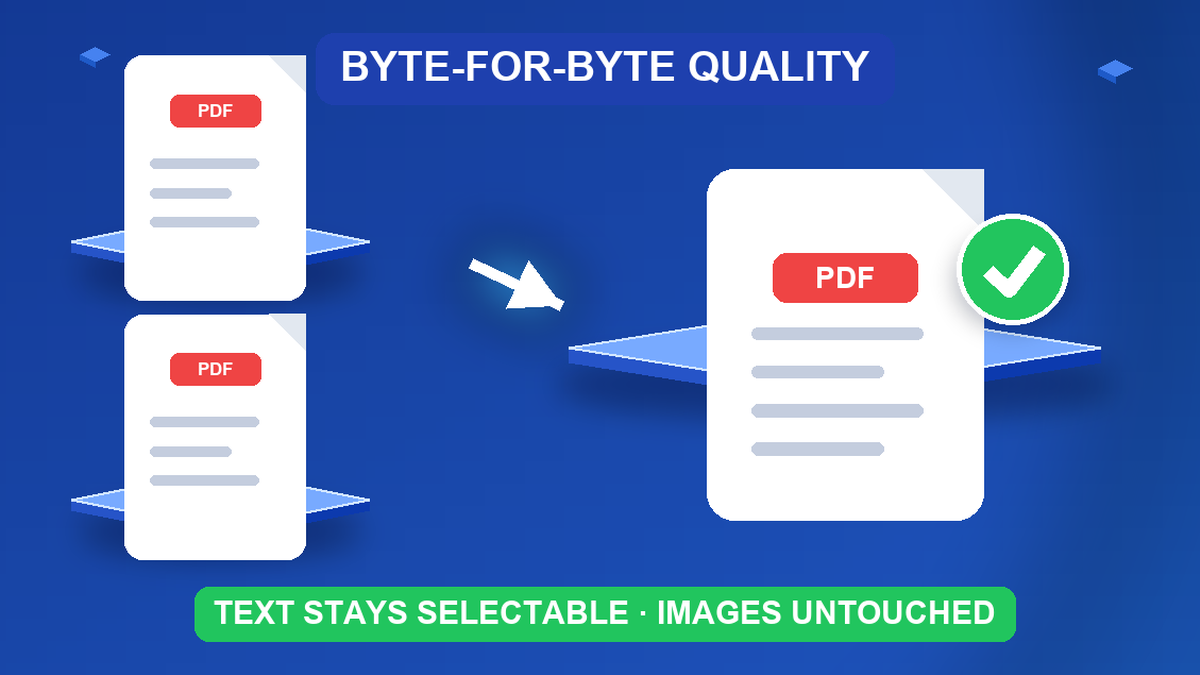
Merging PDFs — combining several files into one document — is the most common PDF task there is, and it should take less than a minute. Here is how to do it free, without an account, with the file staying on your own device.
Method 1: PDF Tura's Merge PDF (browser, free, no upload)
- Open Merge PDF and click Select PDF files (or drag the files onto the page).
- Check the order. Files are joined from the top of the list down, in the order you added them. To change the sequence, remove a file card and add it again in the position you want — or reorder individual pages afterwards with Organize PDF.
- Click Merge PDFs and download the combined file. Everything happens inside your browser tab: the files are not uploaded anywhere.
The merged PDF keeps each page as it was — text stays selectable, images stay sharp, and file size is simply the sum of its parts. There is no page limit and no watermark.
Method 2: fix the page order afterwards
If the merged document needs reordering, deleting or rotating pages, open it in Organize PDF — drag pages into place, ✕ to delete, rotate buttons for orientation, then save. One document in, one clean document out.
The other ways (and when they are better)
- macOS Preview: open the PDFs, drag pages between thumbnails. Free and offline, but clunky for more than a few files.
- Windows: "Print to PDF" can join documents one at a time — slow, and it re-renders pages, which can soften text.
- Linux terminal:
pdfunite a.pdf b.pdf out.pdffrom the poppler-utils package — fast for command-line users. - A desktop suite (PDF24, Acrobat): fine if you already have one installed; overkill if you merge twice a month.
What happens inside a PDF during a lossless merge
Not every method of joining PDFs treats your pages equally. When you combine files using an operating system's "Print to PDF" virtual printer, the system decodes every page, flattens transparency, and re-generates drawing instructions from scratch — a round-trip that often softens embedded images, strips clickable hyperlinks, and breaks font hinting.
A true structural merge in Merge PDF works at the ISO 32000 object level instead. Inside every PDF sits a document catalog, a /Pages tree, and a cross-reference (xref) table pointing to numbered indirect objects (page content streams, subsetted fonts, and compressed image XObjects). Merging copies each source file's /Page dictionaries and referenced resources directly into one new /Pages tree and writes a fresh cross-reference table:
- Vector text and fonts stay untouched. Every glyph keeps its exact coordinates and embedded font subset, remaining razor-sharp at 400% zoom.
- Images are never re-compressed. A JPEG inside page 3 is copied byte-for-byte with zero generational quality loss.
- Mixed page sizes survive cleanly. Because PDF stores
/MediaBoxdimensions per page rather than per document, an A4 portrait contract, a US Letter invoice, and a landscape spreadsheet table sit peacefully inside the same merged file.
Two structural edge cases are worth knowing before you combine complex packets. First, if two fillable forms use identical internal AcroForm field names (for instance, both contain a box internally named Applicant_Name), merging live fields can cause one value to mirror across both forms; run completed forms through Flatten PDF before merging so answers are locked into static page content. Second, password-encrypted PDFs lock their internal object streams — remove known passwords first via Unlock PDF (processed over HTTPS and auto-deleted within one hour) before adding them to a merge list.
Pre-flight checklist and troubleshooting common merge problems
Taking thirty seconds to standardise inputs before or right after merging prevents messy recipient experience:
- Convert photos properly first. Adding a raw 4000-pixel smartphone photo via JPG to PDF with an A4 page preset keeps that page matching your typed pages instead of towering ten times wider in the viewer.
- Fix orientation and stray pages. Use Rotate PDF for upside-down scans, Remove Pages for trailing blank sheets, or Organize PDF when you want to drag individual page thumbnails into a custom sequence.
- Unify pagination and metadata. Stamp continuous numbering across the finished bundle with Add Page Numbers and set a clean document title in Edit PDF Metadata.
| Issue after merging | Root cause in the PDF | Clean fix |
|---|---|---|
| One scanned page appears huge compared to typed A4 pages | Photo was converted at raw pixel dimensions instead of standard paper points | Rebuild image pages at A4 or Letter size in JPG to PDF, then merge |
| Typed answers vanish or overwrite each other across two forms | Duplicate AcroForm field names collide in the shared form dictionary | Lock each filled form in Flatten PDF before running Merge PDF |
| Need page 12 moved to page 3 after joining files | Merge PDF joins whole files top-to-bottom in list order | Open the merged output in Organize PDF and drag page thumbnails |
| Merged packet exceeds a 5 MB or 10 MB upload limit | Combined scan images sum to their original byte weights | Run the merged document through Compress PDF at Recommended |
| Tool refuses to read one of the input PDFs | Source file carries an open password or damaged cross-reference table | Authorised owners can unlock via Unlock PDF or recover via Repair PDF |
Frequently asked questions
Is merging PDF files free?
Yes. PDF Tura's merge tool is free with no daily limit and no watermark, and it works without an account. The file is processed in your browser, so it also works offline once the page has loaded.
How do I combine PDF files into one document?
Add every file to Merge PDF in the order you want them joined — files merge from the top of the list down — and click Merge. The output is one PDF with the pages in that exact order.
Can I merge Word files and PDFs together?
Merge them one step at a time: convert the Word file with Word to PDF first, then include it in the merge. Mixing formats in a single merge tool usually produces a mess, because a merge can only treat files of the same kind as pages.
How many PDFs can I merge at once?
As many as your browser can hold. Merges of dozens of files work fine; merges of hundreds of scanned pages are limited by your device's memory, like any browser tool.
Can I merge PDFs on my phone?
Yes. The merge tool works in a mobile browser — tap to add your files in the order you want them combined, then tap Merge PDFs. If you need to rearrange pages afterwards, open the merged file in Organize PDF.