How to Compress a PDF and Make It Smaller (Without Ruining It)
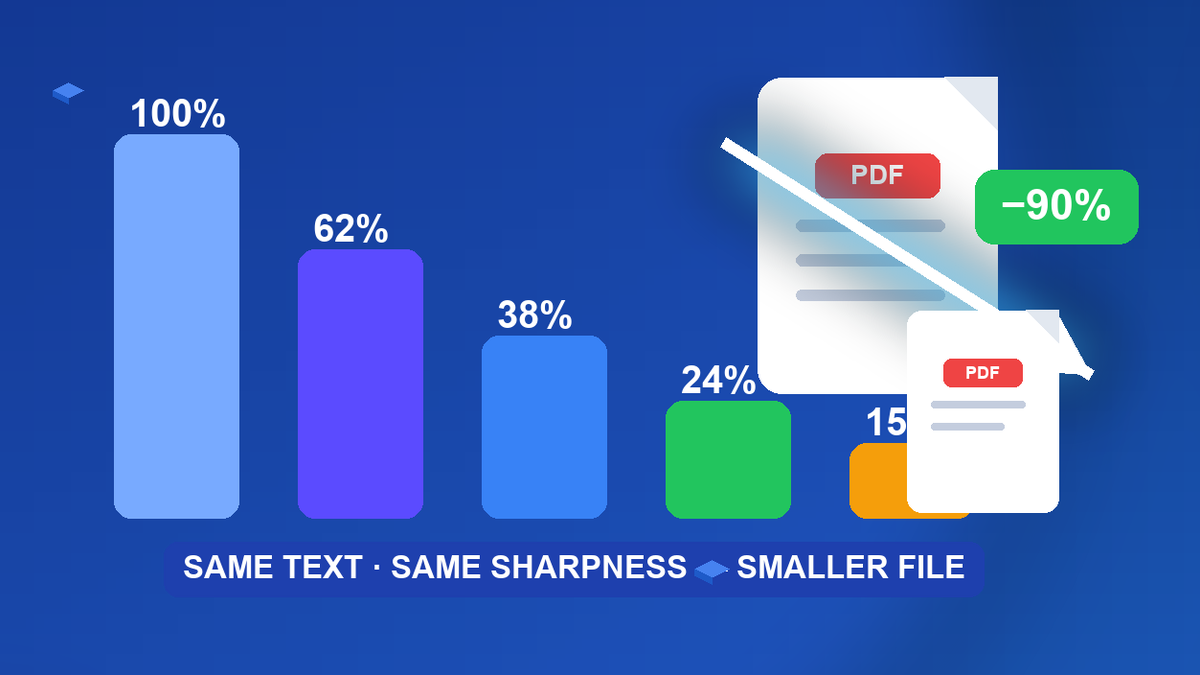
A PDF is usually too big for one reason: it is full of page-sized photographs. Scanned documents are the classic case. Compression works by re-encoding those images at a lower quality — and the art is in losing pixels you will never miss, not in shrinking the whole file blindly.
How to compress a PDF in three steps
- Open Compress PDF and choose the file.
- Pick a level. Recommended is the default because it cuts the most from scans without visible damage; use Light for print-bound documents, Strong when size is everything.
- Click Compress PDF and download the smaller file. Check the pages that matter — the file is compressed in your browser, so trying another level takes seconds.
Which level should you pick?
| Level | Best for | What it does |
|---|---|---|
| Light | Documents going to print, or files you will archive | Mild image downsampling; text untouched |
| Recommended | Email attachments, upload portals | The usual 50-80% cut on scans with no visible change |
| Strong | "Must fit under 2 MB" situations | Aggressive image re-encoding; photos soften |
The honest truth about compression
- A text-only PDF barely shrinks. If your document is typed text and vector graphics, its bytes are already efficient — the compressor removes structural waste (a few percent) and stops. This is a property of the PDF format, not of any tool.
- Text is never damaged. Both compression passes rewrite page structure and re-encode images; text stays as text, sharp at any zoom.
- The output is never bigger than the input. The tool keeps the original as a candidate and takes the smallest result.
- Encrypted files do not compress well. The images inside an encrypted PDF cannot be re-encoded; you get the lossless pass only.
Making a PDF smaller for a specific limit
Portals that reject files over 5 MB, or inboxes that cap at 25 MB, are the usual reasons. Compress at Recommended first; if the file is still over the limit, try Strong. If it is still over, the size is coming from something compression cannot touch — usually page count. Split the document with Split PDF and send it in parts — or pull the only pages that matter out with Extract Pages first, so you are not compressing pages nobody needs.
Target DPI and colour-space trade-offs for portals, email, and print
Because image pixels scale with the square of resolution, small reductions in dots per inch (DPI) produce dramatic drops in file weight. A single A4 page scanned at 600 DPI contains roughly 34.8 million pixels; at 300 DPI it holds 8.7 million; at 150 DPI it drops to 2.17 million — sixteen times fewer pixels than the 600 DPI original, before JPEG quantization even begins.
Matching your compression preset to how the document will actually be viewed keeps text crisp while shedding unnecessary megabytes:
- Screen reading and upload portals (120–150 DPI effective). Laptop monitors, tablets, and reviewer portals display full pages at roughly 100–140 DPI unless zoomed heavily. Downsampling oversized scans into this band via Recommended in Compress PDF routinely cuts 60–80% of file weight while keeping 10 pt body type cleanly legible.
- Office laser printing and archival packets (200–300 DPI). Fine serif footnotes, dense tables, and stamped seals benefit from Light compression so diagonal strokes stay smooth on paper.
- Colour depth waste. Office multifunction scanners frequently capture black-and-white contracts as 24-bit RGB colour photographs (three colour channels per pixel) just to preserve a blue ballpoint signature. When capturing new pages from a phone or webcam, choosing grayscale or black-and-white mode in Scan to PDF prevents three-channel bloat at the source.
- Dark scanner borders. Black or mottled grey margins around skewed flatbed scans force JPEG encoders to spend heavy bitrates on high-contrast edge noise. Trimming dark borders first in Crop PDF both cleans up appearance and improves compression efficiency.
Troubleshooting matrix: when a PDF refuses to shrink enough
When a file stays stubbornly above an upload portal's cap — such as a 2 MB government e-filing limit or a 10 MB job-board ceiling — diagnosing where the remaining bytes live tells you which tool solves it in one step rather than re-compressing an already compressed file.
| Symptom | Likely cause inside the file | Exact fix |
|---|---|---|
| File shrinks by less than 5% at every preset | Pure vector text and embedded font subsets with no raster photos | Already near mathematical minimum; trim unneeded appendices via Remove Pages |
| Fine numbers in a scanned table look soft or blotchy | Strong preset quantized high-frequency ink edges too aggressively | Re-run the original file in Compress PDF at Recommended or Light |
| 60-page scan still exceeds a strict 2 MB portal cap | Even at ~50 KB per page, 60 photographed pages total 3 MB+ | Pull only required pages with Extract Pages or divide via Split PDF |
| Encrypted bank statement barely changes size | Encrypted image streams cannot be decoded for re-quantization | Authorised owners unlock first in Unlock PDF, then compress |
| Smartphone photo packet is 35 MB for just four pages | Raw 12 MP camera JPEGs embedded with dark desk backgrounds | Crop borders in Crop PDF and run Compress PDF at Recommended |
| Draft edited dozens of times carries hidden metadata weight | Dead revision objects and XMP history accumulated across saves | Strip metadata in Edit PDF Metadata and run a Light pass |
Frequently asked questions
How do I make a PDF smaller for email?
Run it through Compress PDF at Recommended. Scanned documents typically lose 50-80% of their size with no visible change; the compressed file stays in your browser, so you can attach it straight from your downloads.
Can I compress a PDF without losing quality?
The lossless structural pass removes waste without touching quality, but big savings come only from re-encoding page images, which is slightly lossy. In practice, Recommended level on a scan is invisible to the eye. Text is never affected.
Why is my PDF still large after compressing?
Usually one of these: the pages are photographs of documents (a scan) — compression helps but cannot work miracles; the PDF contains embedded fonts — a few megabytes by themselves; or the file was already compressed before you got it.
Is my file uploaded when I compress it?
No. PDF Tura compresses in your browser — the file never leaves your device, which is why confidential documents are safe here, and why compression finishes fast even on slow connections.
Quick target-size guide for common upload portals
Before compressing a file repeatedly, match your compression preset to the portal's actual byte ceiling and how the recipient will read the PDF:
| Upload destination | Typical file limit | Recommended approach |
|---|---|---|
| Email attachment (Gmail / Outlook) | 20–25 MB | Balanced compression in Compress PDF shrinks phone scans by 60–80% while keeping text sharp on desktop monitors. |
| Government, visa, or university portal | 1–5 MB | Use Strong compression, or split multi-document packets by section first with Split PDF if individual uploads are allowed. |
| Print-ready brochure or thesis archive | 50+ MB | Use Light compression or remove unused cover pages with Remove Pages so embedded 300 DPI figures stay crisp in print. |