Three Kinds of "Signature" — and What Each One Actually Proves
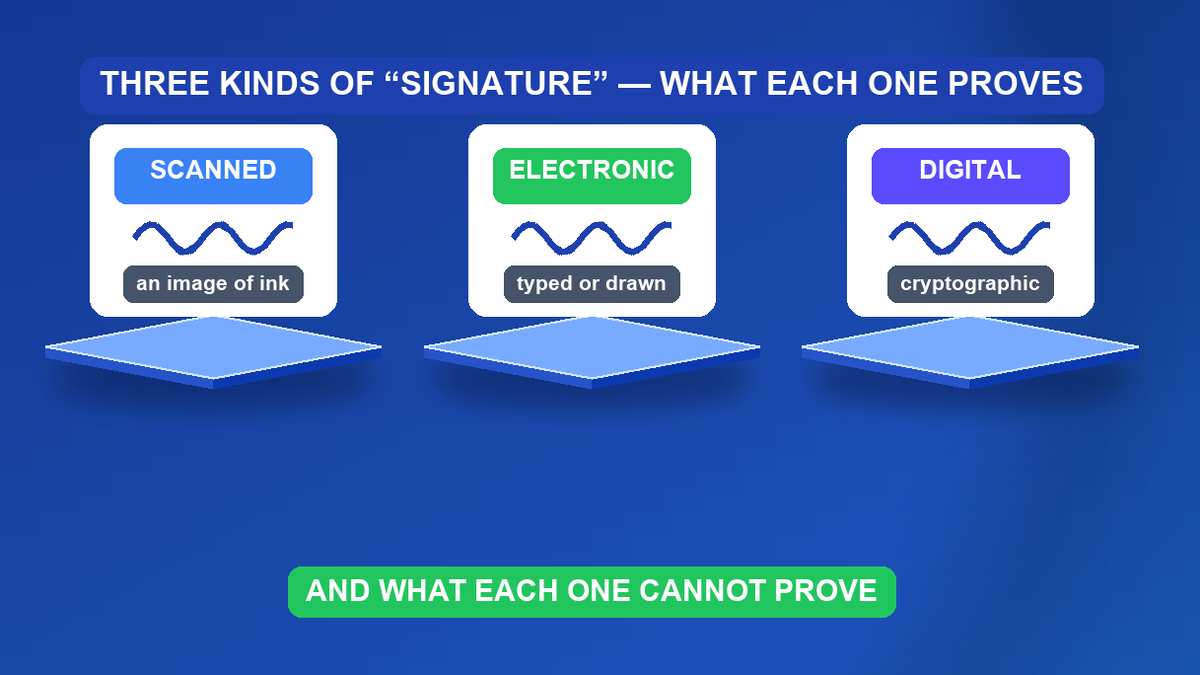
The word "signature" covers three technologies that prove three different things. Choosing the wrong one is the most common mistake in document workflows.
1. The scanned or drawn signature
A picture of ink. It proves intent to a human reader — a person signing a document meant it. It proves nothing to a machine: the image can be copied onto other documents, and nothing detects that. For the overwhelming majority of everyday agreements (invoices, consent forms, internal approvals), this is exactly sufficient — Fill & Sign PDF draws or types it and bakes it into the page.
2. The electronic signature (workflow layer)
An electronic signature wraps the act of signing in a workflow: identity verified by email or login, an audit trail, a timestamp. The signature itself is still an image or a placed object — the proof comes from the process around it. This is what e-sign platforms sell, and regulated workflows (real estate, finance) buy it for the audit trail.
3. The digital signature (cryptographic seal)
A certificate-based digital signature mathematically seals the file: the signer's private key encrypts a hash of the document, and any later edit breaks verification. It proves integrity and identity to a machine — but it needs a certificate infrastructure, and it is overkill for a permission slip.
Which one does your workflow need?
| Workflow | What you need |
|---|---|
| Everyday agreements, forms, approvals | Drawn/placed signature (Fill & Sign PDF) |
| Processes where "who signed when" matters | Electronic signature platform with audit trail |
| Legal filings requiring tamper evidence | Certificate-based digital signature |
Inside the PDF file: visual appearance streams vs PKCS#7 / PAdES cryptographic byte ranges
Although all three mechanisms get called "signing a PDF" in casual office conversation, what gets written into the binary file differs completely between a visual signature and a cryptographic seal.
When you draw your signature with a mouse, stylus, or finger — or type your name in a script font — using Sign PDF or Fill & Sign PDF, the tool writes visual drawing instructions directly onto the target page inside your browser tab (Sign PDF automatically trims excess blank margin around drawn strokes so placement stays tight). Every PDF viewer on earth — Chrome, macOS Preview, iOS Mail, Android readers, and Adobe Reader — displays that signature identically without needing root certificate lookups or online validation servers. However, because the signature is purely graphical page content, it does not lock the surrounding bytes mathematically.
A certificate-based digital signature (defined in ISO 32000 via /Type /Sig dictionaries using PKCS#7 / CMS or ETSI PAdES standards) operates on cryptography rather than ink alone:
- Byte-range hashing. The signing engine reserves a hexadecimal placeholder in the PDF and defines a
/ByteRangearray covering every byte of the file before and after that placeholder. - Asymmetric encryption. It computes a cryptographic digest (typically SHA-256 or SHA-384) over those byte ranges and signs the digest using the signer's private X.509 certificate key — often stored inside a hardware USB token, smart card, or cloud HSM issued by a Certificate Authority (CA).
- Incremental append. The signature block and public certificate chain are appended to the end of the PDF via an incremental update (
%%EOF), preserving the exact historical byte offsets of the original content.
The golden operational rule of cryptographic PDFs: because the SHA-256 hash covers exact file bytes, running any byte-modifying tool after a cryptographic seal is applied — including Compress PDF, Merge PDF, Flatten PDF, Rotate PDF, or Edit PDF Metadata — alters the byte stream and immediately triggers a red "Signature is invalid / Document has been altered" warning in signature-verifying readers. Always complete all editing, merging, page numbering, and compression before applying a cryptographic seal.
Preparing agreements for signing and avoiding common workflow mistakes
For the everyday agreements where a visual signature is appropriate — freelance contracts, vendor POs, NDA acknowledgements, landlord leases, and HR forms — pairing your signature with three simple habits dramatically improves document hygiene:
- Verify counterparty drafts before signing. If you sent out a draft contract and received a "clean final PDF" back for signature, open both versions side by side in Compare PDF first so unannounced clause changes never slip past review.
- Paginate and flatten completed agreements. Stamp
"Page X of Y"footers via Add Page Numbers before signing so pages cannot be silently omitted, and run Flatten PDF after filling fields in Fill & Sign PDF so form entries sit permanently in the page stream alongside your signature. - Skip the print-sign-rescan trap. Printing a crisp 90 KB digital contract, signing with a pen, and scanning it back at an angle turns searchable vector text into a crooked 6 MB photograph. Signing directly in your browser keeps text sharp, searchable, and compact — and if you want an independent tamper check when emailing a file, you can generate a SHA-256 checksum locally in Hash Generator.
| Common signing mistake | What goes wrong downstream | Correct sequence or fix |
|---|---|---|
| Compressing or merging a government certificate that carries a blue digital-signature ribbon | Rewriting streams alters hashed byte ranges and invalidates the cryptographic seal | Never re-save, merge, or compress cryptographically sealed PDFs; archive as-is |
| Leaving AcroForm text boxes live next to a placed visual signature | Recipient can click into unflattened form fields and alter dates or amounts | Lock all form entries into static page content with Flatten PDF right after signing |
| Printing, hand-signing, and phone-scanning a clean digital PDF | Destroys selectable text layer, bloats file size 20×, and introduces shadow skew | Place a drawn or typed signature directly in-browser via Sign PDF or Fill & Sign PDF |
| Signing a returned v2 contract without checking clause diffs against v1 | Subtle edits to payment terms or liability caps go unnoticed | Inspect v1 vs v2 page by page in Compare PDF before signing |
| Emailing a signed agreement containing sensitive banking annexes in plain text | Intercepted or misaddressed email exposes confidential schedules | Encrypt the finished, flattened packet via Protect PDF and share the password separately |
| Multi-page agreement lacks page totals on unsigned middle pages | Ambiguity over whether middle schedules belonged to the signed execution page | Stamp continuous "Page 1 of N" footers in Add Page Numbers prior to signing |
Frequently asked questions
Is a drawn signature on a PDF legally valid?
For most everyday agreements, yes — a clear signature placed by the signatory functions as one. Jurisdictions differ on specific document classes; when in doubt, ask the receiving party what they accept.
What is the difference between electronic and digital signatures?
An electronic signature proves intent through workflow; a digital signature proves integrity through cryptography. Everyday documents need the first; regulated filings may demand the second.
Can I sign a PDF without printing it?
Yes — Fill & Sign PDF draws or types the signature onto the page in your browser and bakes it in on save. No printer, no upload.