Split a PDF Like a Surgeon: Ranges, Extraction and Clean Cuts
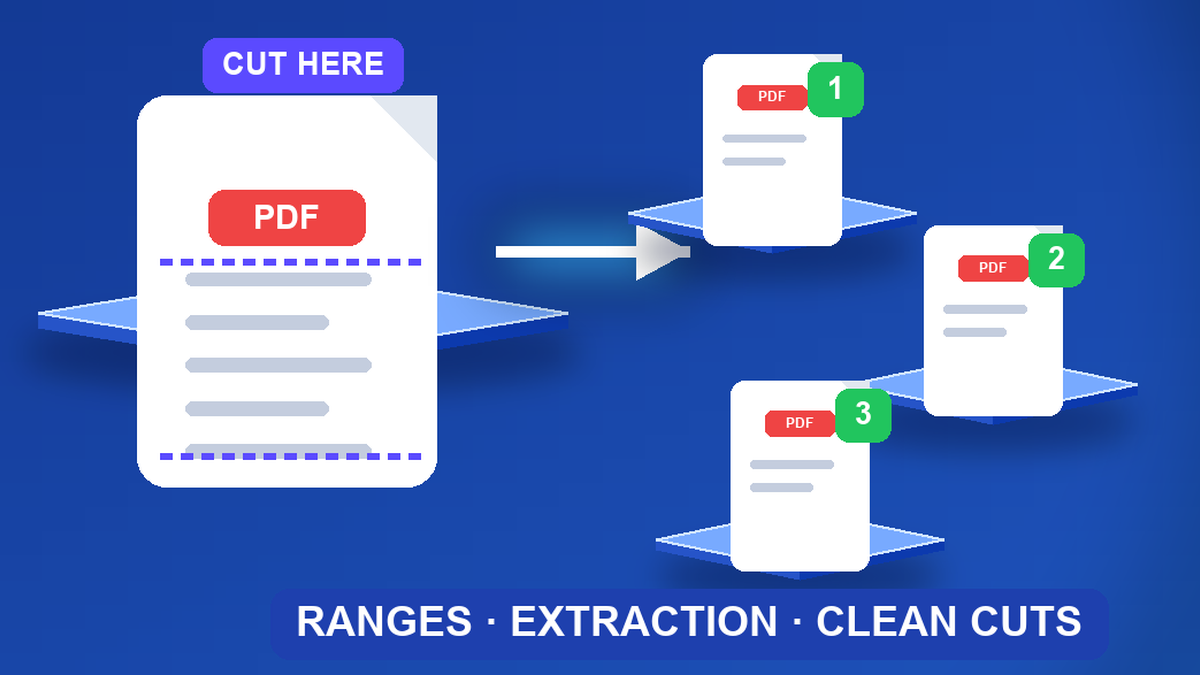
Splitting is the inverse of merging, and it obeys the same law of quality: a cut that copies pages loses nothing, while a cut that re-renders them destroys text layers and resamples images. Here is the surgical version.
The three kinds of cut
- Range split — "1-5", "6-12", "13-end": one document becomes several logical files. The classic move for sending only the relevant chapter.
- Every-N split — one file per page: the scanner's best friend, and the way to hand a single page to a form-filler.
- Extraction — pull chosen pages out into a new document without touching the source: Extract Pages.
All three are one operation in Split PDF: choose the file, define the ranges or the per-page mode, and the tool copies pages into new files in your browser.
Why a copied cut keeps quality
Splitting does not decode or redraw. Each page travels with its content stream, fonts and images intact — the split file is byte-for-byte as good as the corresponding pages of the source. Text stays selectable; scans keep their resolution; bookmarks and page dimensions carry over.
Pre-flight checks before cutting
- Is the file readable? A password-protected source must be unlocked first (with authorisation) — Unlock PDF — or the pages cannot be copied.
- Are the ranges right? Type them as lists and ranges ("1,3-5,9") and preview: the wrong range is the most common split mistake.
- Does the output need compression? A split inherits the source's weight; run the pieces through Compress PDF if they are scans.
Choosing the right cut for each job
The tool gives you three different kinds of cuts, and picking the right one saves a follow-up pass. A range split ("2-5") produces one file containing only those pages — use it when a subset has to travel on its own, such as a single signed page pulled out of a long agreement. Extraction produces each selected page as its own file, which suits scan batches where every page is a separate document. A plain every-page split suits court exhibits and invoices, where each page must be numbered and filed independently.
Because the pages are copied rather than re-rendered, each cut keeps the text layer, fonts, and image resolution of the original — Split PDF does not downsample anything to make the job faster. One habit worth building: name the output before you merge or split anything, because a folder of "document-1.pdf, document-2.pdf" is much harder to audit later than a folder named by date and subject.
Printed page numbers vs physical PDF indices, shared resources, and spread traps
Three structural subtleties inside real-world PDFs cause nearly every mistaken cut — and spotting them beforehand saves redoing an entire batch:
- The front-matter page-number offset. Open a 200-page annual report, university thesis, or court record and jump to the page whose printed footer reads
"Page 1". Half the time, your viewer's toolbar actually reads11 / 200because unnumbered cover art, copyright sheets, and Roman-numeral contents (i–x) occupy the first ten physical slots. PDF range tools — including Split PDF and Extract Pages — always cut by physical 1-based page index, never by the ink printed in the footer or custom/PageLabelsRoman numerals. Always verify the viewer's physical page counter for both the start and end of your range before cutting. - Why ten split files can sum to more bytes than one source PDF. Inside a well-built 50-page catalogue, embedded fonts, ICC colour profiles, and repeating header logos are stored once as shared indirect objects referenced across all 50 pages. When you burst that file into 50 standalone 1-page PDFs, each output file must carry its own self-contained copy of every font subset and graphic resource used on that page so it can open independently. That slight overhead is normal and lossless.
- Two-up book spreads vs multi-page documents. If a flatbed scan captured two facing book pages side by side onto a single wide landscape sheet, page-range splitting cannot separate left and right halves because both halves live inside one
/Pageobject. Duplicate the file and trim left and right viewports separately using Crop PDF instead.
Decision table: Split vs Extract vs Remove vs Organize
PDF Tura separates page-cutting workflows into focused browser tools so you pick the exact surgical cut your task needs — and because every one of them runs locally in your tab, testing a cut on a confidential bundle never uploads a byte.
| Goal | Fastest tool | Input → Output behaviour |
|---|---|---|
Divide a long report into logical chapters (1-8, 9-22, 23-40) | Split PDF (Range mode) | One multi-page PDF in → separate chapter PDFs out in one pass |
| Burst a 40-page scanner batch into 40 individual 1-page invoices | Split PDF (Every-page mode) | One batch PDF in → one standalone PDF per page |
Pull pages 3, 7-9, 18 into one clean standalone packet | Extract Pages | Source stays untouched → chosen pages copied into a new PDF |
| Drop 2 blank sheets or an unwanted cover page from a 35-page file | Remove Pages | Faster than typing keep-ranges; deletes selected pages and saves the rest |
| Reorder scrambled pages visually and fix sideways scans at the same time | Organize PDF | Drag page thumbnails into sequence, rotate 90°/180°, delete extras, and save |
| Clean up inherited author/title tags on extracted court exhibits | Edit PDF Metadata | Strips or renames /Title and /Author fields carried over from the master file |
Frequently asked questions
How do I split a PDF into separate files for free?
Split PDF: choose the file, enter the ranges (or one-file-per-page), and split — free, no account, and the pages are copied, so nothing loses quality.
Can I extract just a few pages from a big PDF?
Yes — Extract Pages pulls a chosen range into its own document without modifying the source.
Does splitting a PDF reduce quality?
Not with a page-copy split: text, images and fonts travel intact. Only re-rendering ("printing" pages to a new PDF) costs quality.
Preserving bookmarks, links, and page numbering after a split
When you extract a subset of pages from a larger report using Split PDF or Extract Pages, the copied /Page dictionaries carry their original media boxes, embedded font subsets, and vector content streams verbatim without re-compression. Keep two practical details in mind before sending extracted chapters to a client:
- Printed footer numbers vs PDF viewer indices: If you extract pages 15–22 of a board deck, the PDF viewer's page counter naturally starts at
1 of 8, while the visible footer printed on those sheets still readsPage 15. If the excerpt needs standalone numbering, run it through Add Page Numbers afterwards. - Internal cross-chapter links: Go-to links pointing to pages you left behind no longer have a destination inside the smaller file, so review clickable tables of contents in Edit PDF when preparing standalone handouts.