The Five Document Loops Every Small Business Runs (and the Free Tools That Handle Them)
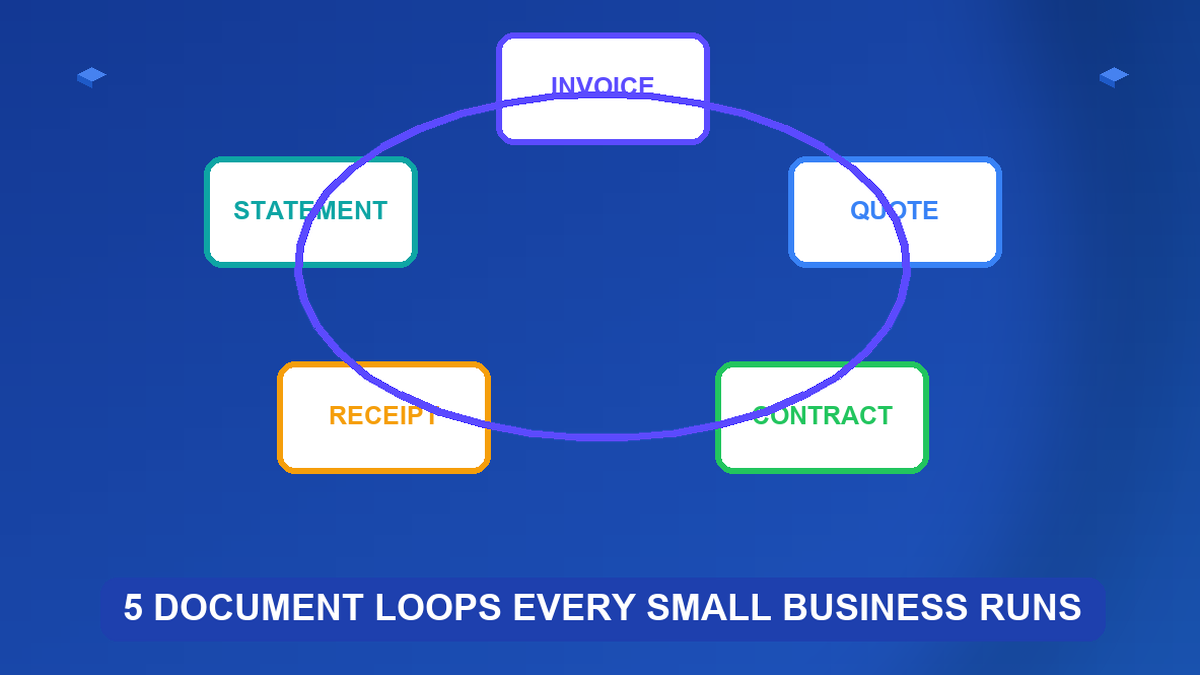
Small businesses do not have a "PDF problem". They have five repeating document loops, and every one of them burns paid subscriptions it does not need. Here is each loop, the free tool that closes it, and the browser-first reason the whole stack costs nothing.
1. Quotes and invoices: DOCX → PDF → send
The quote is drafted in Word because numbers change. The version the client receives must not. Word to PDF fixes the layout permanently, embeds the fonts, and the client sees exactly what you sent — on their phone, their laptop, their printout.
2. Contracts: fill → sign → flatten
The contract comes back as a PDF needing signature. Fill & Sign PDF types into fields (or onto flat pages), places the signature, and bakes everything in on save. Flatten PDF afterwards makes the answers permanent page content no one can reset.
3. Scanned receipts and paperwork: phone → OCR → archive
Photographs of receipts are a searchable-document waiting to happen. OCR PDF recognises the text (English and Bengali), making the archive searchable — which is the difference between a filing system and a shoebox.
4. Reports: merge → compress → email
The monthly report is five documents from five people. Merge PDF combines them in order, Compress PDF brings the combined file under the email cap, and nothing was uploaded at any point.
5. Client forms: fields → collect
Forms for clients to complete travel as PDFs with fields, and come back filled. When a form is flat (scanned), the fill tool draws typed answers on the page instead.
Why the whole stack is free
Almost every tool in this workflow runs directly inside your browser tab with no cloud upload, no daily cap, and no watermarks. The only exceptions are clearly disclosed: Protect PDF, Unlock PDF, Repair PDF, and HTML URL fetch run on our server over HTTPS and auto-delete temporary files within one hour, while AI tools transmit submitted text over HTTPS to external AI providers under their own terms. That is the entire business model of a browser-first suite: PDF Tura's free tools exist because the browser does the work.
Three More Back-Office Document Loops (Reconciliation, Redaction, and Archiving)
Beyond daily quotes, contracts, receipts, reports, and intake forms, growing businesses hit three back-office document bottlenecks every quarter—usually right at tax filing, month-end close, or an external client audit:
- Bookkeeping & supplier table reconciliation (
PDF → XLSX / CSV): Wholesale price sheets, courier billing summaries, and vendor statements almost always arrive as locked-layout PDFs rather than spreadsheets. Retyping 150 line items by hand invites transposition typos that throw off ledger balances. When the supplier PDF is digital, PDF to Excel extracts structured rows and columns into an.xlsxworkbook directly inside your browser; when the figures come from messy copied text or an OCR pass, Extract Table to CSV formats semi-structured lines into clean comma-separated columns ready for Excel or accounting imports (and CSV to Excel converts.csvexports locally in one click). - Subcontractor & client compliance packets (
Redact → Scrub Metadata → Lock): Sharing a supplier proof-of-delivery with an end client—or sending payroll and tax documents to an external accountant—often requires hiding wholesale unit costs, bank account digits, or unrelated employee rows on the same sheet. Drawing black boxes in a presentation app leaks the underlying text; running Redact PDF rasterises marked pages in a fresh browser-built PDF so redacted figures are permanently gone, Edit PDF Metadata strips internal author names, and Protect PDF adds password encryption over HTTPS when sending sensitive packets across shared inboxes. - Statutory & tax-year archiving (
Number → Flatten → PDF/A): Corporate registries, tax authorities, and tender portals increasingly require multi-document bundles to carry continuous pagination and long-term archival compliance. Assembling supporting vouchers in Merge PDF, resequencing any out-of-order exhibits in Organize PDF, stamping"Page X of N"via Add Page Numbers, and converting finalised records in PDF to PDF/A produces a self-contained audit binder that opens identically years later.
Standard Operating Checklist: File Hygiene and Privacy Rules for Small Teams
Even a five-person company benefits from three lightweight PDF habits that prevent embarrassing client mistakes without buying enterprise document-management software:
| Business Workflow | Typical Source File | Free Tool Chain on PDF Tura | Execution & Data-Hygiene Rule |
|---|---|---|---|
| Outbound sales quotes & SOWs | Editable .docx or .xlsx | Word to PDF or Excel to PDF → Compare PDF | Spot-check pricing revisions side by side in your browser before emailing the final quote. |
| Signed client agreements | Counter-signed PDF with form fields | Fill & Sign PDF → Flatten PDF | Always flatten after signing so interactive form fields cannot be edited after execution. |
| Paper vendor bills & courier slips | Phone camera photos | Scan to PDF → OCR PDF | Both run 100% locally in your browser; name files YYYY-MM-DD_Vendor_Amount.pdf for instant search. |
| Single photo of a sensitive ID or cheque | Smartphone image | Image to Text (Browser Private mode) | Switch from default AI mode to Browser (Private) so confidential images never leave the device. |
| Redacted proof-of-purchase for clients | Supplier invoice PDF | Redact PDF → Edit PDF Metadata | Verify with Ctrl+F and mouse drag that zero hidden digits survive on marked pages. |
| Password-locked HR or payroll slips | Finalised employee PDF | Protect PDF (server HTTPS, 1-hr auto-delete) | Send the encrypted PDF by email and share the passphrase over a separate phone/SMS channel. |
Standardising filenames around ISO dates (2026-11-25_ClientName_Invoice-1042.pdf) paired with searchable text layers from OCR PDF turns any ordinary local folder or shared drive into an instant, zero-subscription document retrieval system.
Frequently asked questions
What PDF tools does a small business actually need?
The five loops cover it: Word to PDF for quotes, fill-and-sign for contracts, OCR for scanned receipts, merge and compress for reports, form filling for client intake. All five are free at PDF Tura.
Are free PDF tools safe for business documents?
Browser-based tools are: the document is processed on your own device and never uploaded. For server-processed PDF tools (Protect PDF, Unlock PDF, and Repair PDF), temporary uploads are auto-deleted from our server within one hour; for cloud AI tools, avoid pasting confidential client records because external AI providers process requests under their own retention policies.
Building a zero-leak document habit across a small team
Most small-business data leaks do not come from sophisticated breaches—they happen when staff upload unredacted client contracts to random ad-heavy converters or email editable .docx quotes whose revision history still shows internal margin calculations. Standardising three lightweight habits eliminates those risks without buying enterprise software:
- Export quotes to PDF and flatten interactive fields: Convert final spreadsheets or proposals with Word to PDF or Excel to PDF, then run Flatten PDF so form values and annotations become static page content.
- Wipe hidden metadata before external submission: Check author and title fields in Edit PDF Metadata and use Redact PDF (never a simple black drawing rectangle) whenever removing tax IDs or bank account numbers.
- Keep confidential scans in browser-only mode: Use Merge PDF, Compress PDF, OCR PDF, or Image to Text in Browser (Private) mode so sensitive paperwork stays 100% on the employee's device.