The Complete Guide to PDF Security: Passwords, Redaction, and What Actually Protects a Document
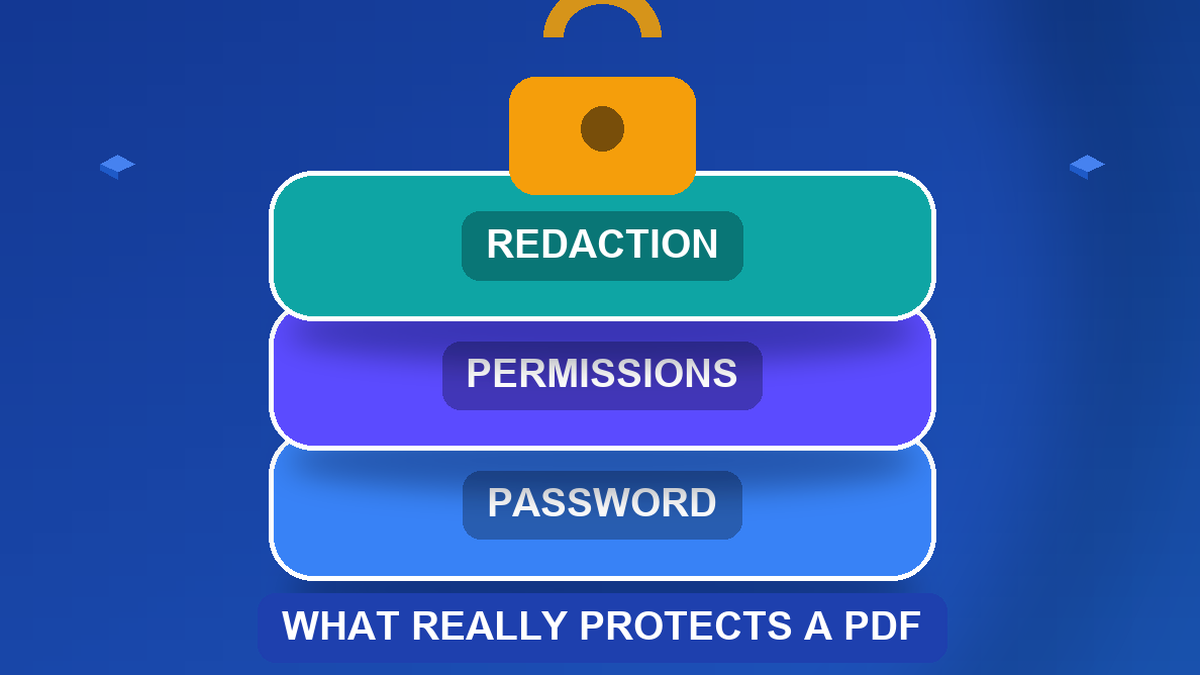
Most people protect a PDF the way most people lock a diary: with a gesture that feels secure and is not. This guide separates the four layers of PDF security, what each one technically does, and — more importantly — what each one cannot do.
Layer 1: The open password (user password)
Encrypting a PDF with an open password wraps the file’s streams in AES (or the older RC4). Without the password the content is genuinely unreadable — this is real cryptography, and a strong password (long, unique) is safe against casual access. The weakness is the password itself: short passwords fall to brute force, and the "protection" travels with the file, meaning one forwarded copy undoes everything.
Use it when: a document leaves your control and the recipient is known. Unlike most PDF Tura tools, Protect PDF runs on our server over HTTPS to apply the encryption — the temporary file is auto-deleted within the hour.
Layer 2: The permissions password (owner password)
This sets the flags readers honour: no printing, no copying, no editing. Here is the part vendors rarely explain: permissions are a courtesy protocol, not cryptography. The content is typically still encrypted under a derived key that many readers hold, and free tools can strip the flags. Treat permissions as a way to communicate intent ("do not print this"), never as protection of secrets.
Layer 3: Redaction — the only true removal
Drawing a black rectangle over text hides it visually. The text remains in the file — copy the page content and it reappears. This is how "redacted" documents leak. Real redaction removes the characters from the content stream and the underlying data, which is what a dedicated tool must do. If you are blacking out anything sensitive, use a proper Redact PDF tool, then verify by trying to select the "redacted" area — nothing should be selectable.
Layer 4: The document never leaves the device
The strongest layer is architectural. A file processed on a server exists on that server, in logs, in caches, in backups. A file processed in your browser — as PDF Tura’s merge, split, compress, edit, sign and redact tools are — exists only on your machine. There is no upload to intercept, no server copy to leak, no retention policy to trust. For confidential documents this outranks every other layer: Edit PDF or Merge PDF a contract with the page disconnected from the internet and the tools still work.
The workflow that actually holds up
- Before sharing: redact what must not exist (Redact PDF), then flatten (Flatten PDF) so layers cannot be peeled apart.
- When sharing: apply an open password if the channel is untrusted (Protect PDF); share the password through a different channel than the file.
- Before disposal: the removed material must actually be removed — re-saving is not enough.
Hidden data leaks most people miss: metadata, unflattened layers, and CropBox masks
Securing a PDF against casual snooping requires looking past what renders on the canvas. Four hidden data structures inside ordinary PDFs routinely expose sensitive context even when the visible page looks clean:
- Document
/Infodictionaries and XMP metadata streams. Word processors, scanners, and accounting suites silently write author names, employee usernames, software versions, creation timestamps, and sometimes internal folder paths into PDF metadata. Before publishing a blind-review paper, whistleblower filing, or competitive bid, inspect and wipe those fields locally in Edit PDF Metadata. - Cropped margins that only hide content visually. Cropping a PDF updates the page's
/CropBoxviewport rectangle while leaving the underlying/MediaBoxstream untouched. Anyone who resets the crop box or extracts text via PDF to Text can still read marginal notes sitting outside the cropped frame. If off-margin content is confidential, burn it out permanently with Redact PDF instead of relying on cropping alone. - Unflattened annotations and form revision layers. Sticky comments, review highlights, and interactive form fields live in separate
/Annotsobject arrays above the base page. Running Flatten PDF merges visible layers into static page instructions so hidden default values or editable fields cannot be peeled apart. - Low-entropy passwords. AES stream encryption in Protect PDF is only as strong as the key derived from your password. Because an attacker holding an encrypted PDF can test password guesses offline without server rate limits, short dictionary passwords crack quickly. Generate a random 16+ character passphrase locally in Password Generator, apply encryption via Protect PDF (processed over HTTPS and auto-deleted within one hour), and send the passphrase over a separate messaging channel.
PDF security comparison matrix: matching the threat model to the right defence
No single PDF feature solves every threat. Use the matrix below to pair the exact risk you face with the mechanism engineered for it, then verify redacted files by pressing Ctrl+A / Cmd+A and searching (Ctrl+F) for removed terms before sharing.
| Security mechanism | What it actually does | Defends against | Fails against | PDF Tura tool |
|---|---|---|---|---|
| Open (user) password | Encrypts internal content streams with AES | Unauthorized opening if email or link is intercepted | Weak passwords or an authorized recipient forwarding the unlocked text | Protect PDF (server HTTPS, 1h auto-delete) |
| Permissions (owner) flags | Sets reader UI restrictions on print, copy, or edit | Accidental edits or casual printing in compliant viewers | Non-compliant readers and stripping utilities | Protect PDF |
| True raster redaction | Rasterises target regions and destroys underlying glyphs | Copy-paste, text extraction, and object-tree inspection of secrets | Leaving duplicate unredacted mentions on other pages | Redact PDF (100% in-browser) |
| Layer flattening | Merges form fields and annotations into static page content | Recipients accidentally resetting or typing over filled form boxes | Deliberate PDF text editing or OCR extraction | Flatten PDF (100% in-browser) |
| Metadata stripping | Removes /Author, /Title, /Creator, and XMP tags | Leaking employee identities, edit timestamps, or tool origins | Visible names left inside the document body | Edit PDF Metadata (100% in-browser) |
| Recipient watermarking | Stamps visible ownership or recipient identifiers across pages | Unattributed screenshots and casual leak redistribution | Stopping someone from reading the text right in front of them | Watermark PDF (100% in-browser) |
Frequently asked questions
Does a PDF password really encrypt the file?
An open password does — the content streams are encrypted with AES and are unreadable without it. Permission flags are different: they request behaviour from the reader and are not real protection.
Can someone remove the password from my PDF?
With a weak password, yes, by brute force. With a strong (long, random) password, practical attacks fail. Permission-only restrictions, however, are strippable by common tools.
Why is drawing a black box not enough to hide text?
The box is drawn over the text; the text is still in the file underneath. Copy-paste or extract the content and it returns. Redaction must delete the characters and their hidden copies.
What is the safest way to share a confidential PDF?
Redact what must not exist, then encrypt with a strong password, then send the file and the password through different channels — and process it all with tools that keep the file on your device.