Make a PDF Smaller: 7 Methods Ranked by How Much They Save
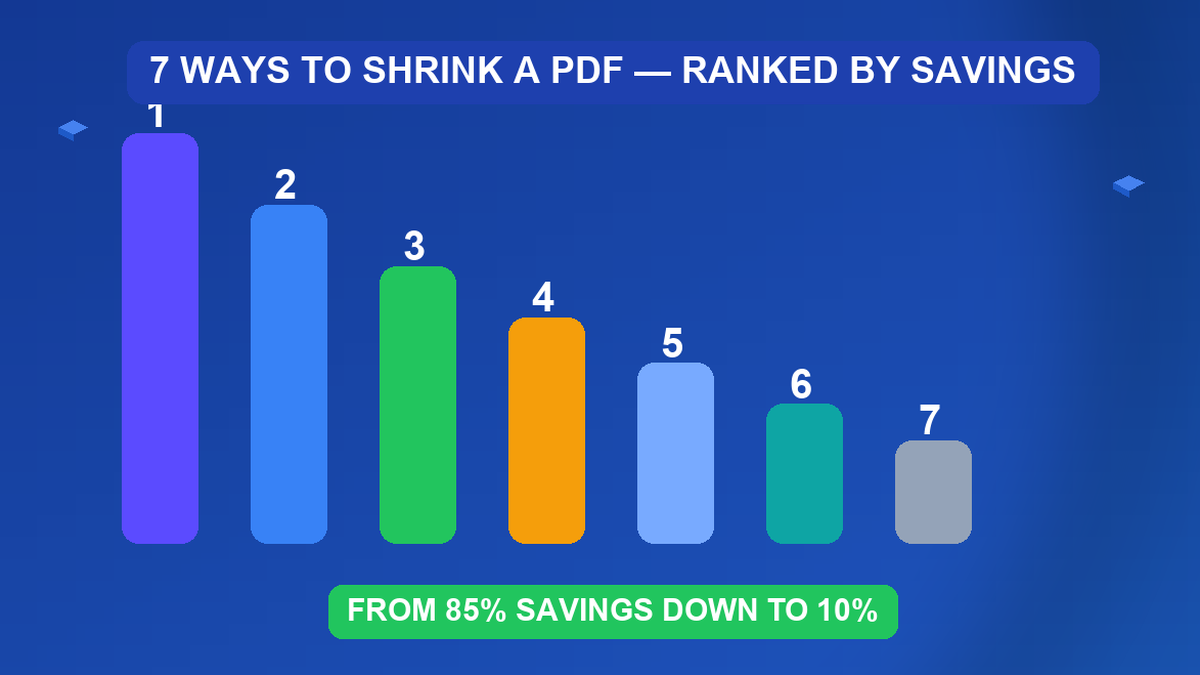
Not every shrinking method is equal. Some rescue 85% of the bytes; some barely move the needle. Here are the seven real levers, ranked.
1. Re-encode the images (the big one)
Page photographs dominate a scanned PDF's size. Downsampling and re-encoding them at a sane JPEG quality routinely saves 50–85%. This is what Compress PDF does at its Recommended and Strong levels — text is untouched, only the images are optimised.
2. Lower the scan DPI
A 600 DPI scan carries four times the pixels of a 300 DPI scan with almost no readable benefit. Resampling to 300 before compressing compounds the savings.
3. Flatten layers and forms
Interactive elements and annotation layers add object overhead. Flatten PDF merges them into the page — useful before archiving or emailing signed documents.
4. Strip structural waste
Duplicate objects, unused resources and incremental-save baggage: the lossless structural pass removes them. A few percent on clean files, more on files edited for years.
5. Subset the embedded fonts
A document carrying a full CJK font can lose tens of megabytes by embedding only the glyphs it uses. Automatic in well-built tools; rare in casual ones.
6. Remove attachments
PDFs can carry embedded files. Each one rides along inside the document — remove them when they are not part of the deliverable.
7. Re-print to PDF (last resort)
Re-rendering through a print driver rebuilds the file from scratch. It often shrinks the file — by turning selectable text into pixels. Use only when the text layer no longer matters.
The combination that wins
The structural pass plus image re-encoding beats either alone — which is exactly the two-pass design of Compress PDF. Try Recommended first; escalate to Strong only for hard size limits.
Pairing methods for bigger wins
The seven methods are not competing options — the biggest savings come from stacking them in the right order. Start with the structural pass: removing duplicate objects and orphaned data costs nothing and takes seconds. Then run image downsampling, which is where scanned documents lose most of their weight. Only then consider splitting, because cutting a document into parts is a workflow decision, not a compression technique. Grayscale conversion comes next for text-plus-image documents, and removing unused pages is last — deleting a page you still need is the one mistake this list cannot undo.
Compress PDF bundles the first two passes automatically: structural re-save plus image re-encoding at three quality levels, keeping whichever candidate is smallest. Split PDF handles the last resort cleanly when the file simply has too many pages.
Auditing Where the Megabytes Actually Live Before You Compress
Applying the wrong compression technique wastes time—or worse, makes a clean PDF larger—because four completely different byte consumers hide behind the .pdf extension. Before choosing a compression preset, diagnose which internal resource actually dominates your file:
- High-megapixel raster XObjects (
DCTDecode/FlateDecode): A three-page smartphone photo packet or 600 DPI colour flatbed scan easily hits12–25 MBbecause each page embeds a multi-million-pixel RGB bitmap. Image downsampling and JPEG quantization rescue up to four-fifths of those bytes immediately. - Lossless PNG slide graphics and UI screenshots: Presentations exported from Canva, Figma, or PowerPoint often store full-bleed background textures or photographic banners as lossless
FlateDecodeRGB streams rather thanDCTDecodeJPEGs—inflating a 10-slide deck past20 MB. - Dense CAD, GIS, or Illustrator vector paths: Architectural floorplans and map exports contain zero raster photos yet still weigh
15 MBbecause a single page stream carries hundreds of thousands of Bézier path operators (m,l,c). Image re-encoding will not touch vector coordinates; only stream deflate packing or splitting sheets moves the needle. - Embedded multi-weight Unicode fonts (
FontFile2/FontFile3): A two-page receipt carrying unsubsetted CJK or multi-weight variable fonts may hold4–8 MBof glyph tables that image sliders cannot shrink.
Naive web compressors make a notorious mistake here: they rasterise every page into a JPEG and rebuild the PDF from images. On a crisp 300 KB text contract, turning tiny vector glyph instructions into full-page bitmaps bloats the file to several megabytes and blurs every letter! Compress PDF avoids that trap by walking the object graph selectively: it downsamples and re-encodes eligible DeviceRGB and DeviceGray image XObjects (Light: 2200 px max edge at 0.82 JPEG quality; Recommended: 1600 px at 0.72; Strong: 1200 px at 0.58), leaves SMask alpha transparency, CMYK print plates, and crisp 1-bit CCITT/JBIG2 bitonal scans untouched so nothing corrupts, packs raw streams with FlateDecode, and benchmarks every candidate against your original bytes—guaranteeing the output can never grow larger than the input.
Hitting Strict Portal Upload Caps (2 MB, 5 MB, 10 MB) Without Ruining Legibility
Visa portals, university admissions systems, court e-filing gateways, and procurement platforms enforce rigid upload ceilings—often 2 MB or 5 MB per file—while corporate email servers commonly reject messages around 20–25 MB after Base64 MIME encoding adds roughly 33% transport overhead (meaning an 19 MB PDF attachment can already bounce!).
Use this diagnostic matrix to hit strict byte budgets cleanly on the first attempt:
| Document Archetype | Primary Weight Source | Optimal Tool Strategy on PDF Tura | Expected Outcome |
|---|---|---|---|
| Smartphone camera scan of IDs, deeds, or receipts | Oversized 3000–4000 px colour photos + dark desk borders | Trim borders in Crop PDF, then run Compress PDF (Recommended or Strong). | Sharp readable text at a fraction of original megabytes. |
| Scanned report with blank separator backsides | Double-sided scanner captured empty reverse pages as colour JPEGs | Delete empty sheets in Remove Pages, then run Compress PDF. | Immediate proportional drop per removed page plus image savings. |
| Slide deck or brochure with embedded product photos | High-DPI FlateDecode / DCTDecode raster graphics | Run Compress PDF at Recommended (1600 px edge cap). | Vector headlines and body copy stay 100% crisp; only photos shrink. |
| Multi-year form edited and signed repeatedly | Orphaned incremental revisions, form widgets, & XMP bloat | Flatten fields in Flatten PDF, strip XMP/orphan streams in Compress PDF. | Lossless structural cleanup with zero visual degradation. |
120-page digital text manual exceeding a 2 MB portal cap | Pure page volume & embedded font subsets (already deflated) | Partition into logical volumes ("Part 1", "Part 2") using Split PDF or Extract Pages. | Preserves selectable vector text without destructive rasterisation. |
Always inspect fine print—especially 7-point table digits, decimal points, and scanned signatures—at 150% zoom after running the Strong preset so aggressive quantization never blurs a zero into an eight on an official submission.
Frequently asked questions
What is the fastest way to make a PDF smaller?
Compress PDF at Recommended. Scans typically lose 50–85% with no visible change, and the file stays on your device.
Why is my text-only PDF still large after compression?
Text and fonts do not compress much — they are already efficient. The remaining weight is page count; split the document if size is critical.
Does making a PDF smaller affect quality?
Only the images, and only at stronger levels. Text, fonts and vector lines are never re-encoded by a careful compressor.