JPG, PNG or WebP: Choosing the Right Image Format for PDF Jobs
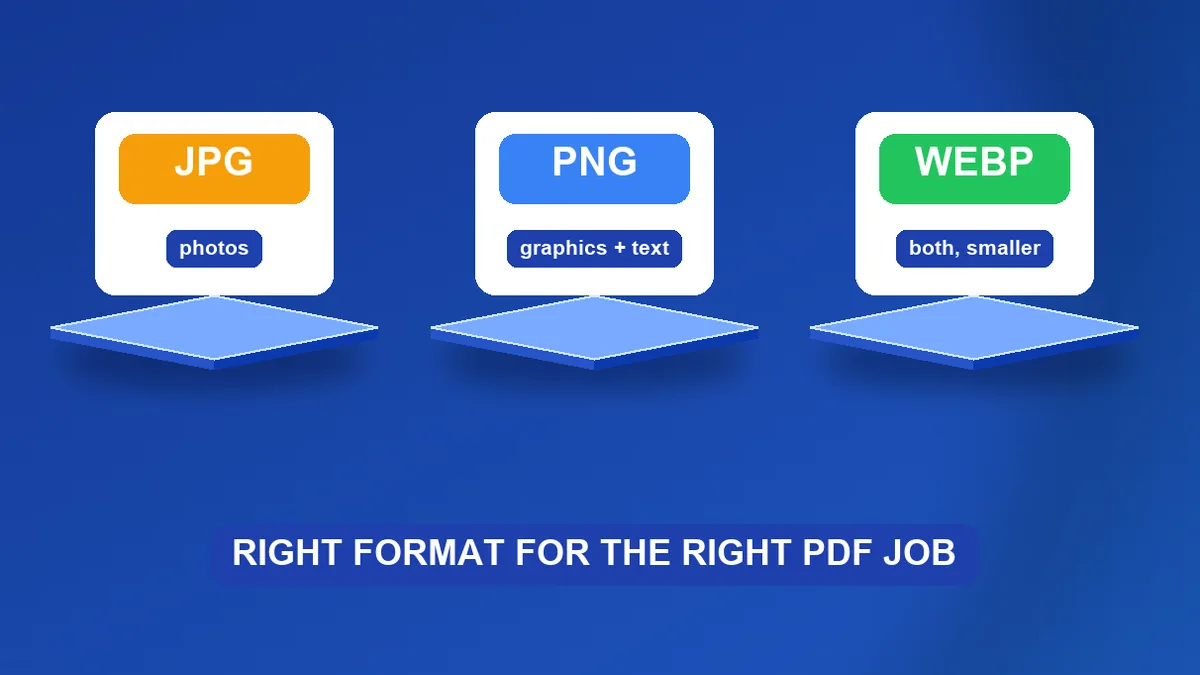
The image format you feed a PDF job decides the output quality more than any setting inside the tool. The three formats behave differently in three dimensions: loss, transparency and support.
JPG — the photograph format
Lossy compression tuned for photographs: smooth gradients compress beautifully, sharp edges suffer ringing artefacts. No transparency. For scans and page photographs destined for a PDF, JPG at quality 80–90 is the sweet spot — Compress Image finds the point where size stops and visible damage starts.
PNG — the crisp-edge format
Lossless, with alpha transparency. Text, line art, screenshots and diagrams stay pixel-perfect at any size — which is why PDF to PNG is the right export when a page contains fine print you will zoom into. The cost: file sizes are larger, and photographic content compresses poorly.
WebP — the modern middle
Google's format offers both lossy and lossless modes, usually smaller than JPG at similar quality. Browser support is universal; PDF tool support varies. PDF Tura's Convert Image accepts WebP input — a WebP that arrives in your workflow can be normalised to JPG or PNG without any installed software.
The decision rule
- Photographs or scans → JPG (quality 80–90).
- Text, screenshots, diagrams, anything with sharp edges → PNG.
- Already-WebP content → convert to the target format in the browser (Convert Image).
- Building a PDF from mixed images → Images to PDF accepts JPG and PNG together and keeps every pixel as-is.
The default answer for each job
When the destination is a PDF, the choice collapses to three rules. Photographs and scans → JPG: the lossy compression is invisible on continuous tones and the size savings are enormous. Screenshots, diagrams, and anything with sharp text edges → PNG: lossless compression keeps one-pixel lines crisp where JPG would smear them. Web delivery of either → WebP: the same visual result at a smaller size, ideal when the image itself is being shown on a site rather than embedded in a document.
The mistake to avoid is converting between lossy formats repeatedly — a JPG turned into a PNG does not recover the quality it lost. Convert Image handles the format switch locally, and Images to PDF bundles the results into one document without any further re-encoding, so the quality you chose is the quality that ships.
How PDF Containers Actually Store Images: DCTDecode vs FlateDecode Streams
A common misconception is that a PDF acts like a .zip folder holding raw .jpg, .png, or .webp files side by side. Internally, ISO 32000-1 stores raster graphics as Image XObjects (/Type /XObject /Subtype /Image), and the PDF specification supports only a specific set of binary stream decompression filters. Knowing what happens to each image format at the byte level explains every size and sharpness surprise you see on the finished page:
- JPG maps directly to
/Filter /DCTDecode: Because the PDF spec natively speaks Discrete Cosine Transform (DCTDecode) JPEG streams, a well-built tool like JPG to PDF or Images to PDF can wrap a JPEG's compressed byte stream straight into a PDF object with zero re-encoding—no generation loss and zero byte bloat. Under the hood, however, JPEG divides pixels into8 × 8frequency blocks and typically applies4:2:0chroma subsampling (halving colour resolution horizontally and vertically). On photographs, the human eye never notices; on sharp black text or red UI callouts,8 × 8quantization creates faint grey "mosquito noise" halos around every stroke that slow down OCR PDF. - PNG unpacks into
/Filter /FlateDecodeplus/SMask: PDF has no"PNGFile"wrapper. Instead, a PDF writer decodes the PNG's chunks, separates its RGB colour channels from its 8-bit alpha channel, writes the colour pixels into a losslessFlateDecode(zlib/deflate) stream, and stores transparency as a linked Soft Mask (/SMask) grayscale XObject. Every single pixel edge stays mathematically exact, which is why PNG to PDF preserves 1-pixel CAD hairlines, QR codes, and financial charts without a trace of ringing blur. - WebP has no native PDF stream filter: Neither PDF 1.7 nor PDF 2.0 defines a
WebPDecodefilter. Any tool that accepts a.webpimage must first decode it to an uncompressed pixel buffer in memory and re-encode it as eitherDCTDecode(JPEG) orFlateDecode(PNG-style) before embedding. Converting WebP deliberately beforehand in Convert Image puts you in charge of whether a photographic WebP becomes a compact JPG or a lossless WebP diagram becomes a pixel-exact PNG.
| Technical Property | JPG (DCTDecode in PDF) | PNG (FlateDecode + SMask) | WebP (Pre-PDF Source Asset) |
|---|---|---|---|
| Compression model | Lossy 8 × 8 DCT + 4:2:0 chroma subsampling | Lossless zlib deflate + scanline predictors | Supports both lossy (VP8) and lossless (VP8L) |
| Native PDF stream support | Yes — embeds raw bytes directly without re-encoding | Yes — stored losslessly as FlateDecode pixels | No — must transcode to JPG or PNG streams on embed |
| Sharp 1-pixel text & UI borders | Poor below quality 85 (visible ringing halos) | Perfect — zero edge distortion at any zoom | Lossless mode stays sharp; lossy mode softens thin strokes |
| Alpha transparency | Unsupported (transparent areas flatten to solid colour) | Full 8-bit alpha via linked /SMask object | Supported, preserved only if transcoded via PNG path |
| Typical A4 300 DPI page weight | 350 KB – 900 KB | 1.5 MB – 6 MB (up to 12 MB on noisy photos) | 25–35% smaller on web, then expands to JPG/PNG in PDF |
| Best PDF Tura entry point | JPG to PDF / Compress Image | PNG to PDF / PDF to PNG | Convert Image → Images to PDF |
Alpha Transparency, EXIF Orientation, and Avoiding Generation Loss
Three subtle image pitfalls catch teams off guard during document production:
- Transparent PNG backgrounds turning black: Poorly written legacy converters discard a PNG's alpha channel while keeping raw RGB zero-bytes (
0, 0, 0) in transparent regions, turning a clean company logo or signature stamp into a solid black rectangle. When flattening transparent assets intentionally onto white sheets—such as in Scan to PDF or Convert Image when exporting to JPG—compositing over a#FFFFFFcanvas first prevents black-box surprises. - Sideways smartphone JPEGs (
EXIF Orientation): Phones often record portrait photos sideways on the sensor and set an EXIFOrientation: 6tag telling viewers to rotate 90° clockwise. If an image appears sideways, fix it cleanly before assembly in Rotate / Flip Image or straighten the finished page in Rotate PDF. - Exporting pages back out of a PDF: Match the export format to what happens next. Choose PDF to JPG for slide thumbnails, email previews, and social cards; choose PDF to PNG whenever exported pages contain dense tables, architectural callouts, or text destined for Image to Text or zoomed screen inspection, and trim oversized pixel dimensions with Resize Image rather than cranking JPEG compression down into visible blockiness.
Frequently asked questions
Which image format is best for scanning documents into PDFs?
JPG for photographic scans (quality 80–90 keeps size sane); PNG for documents with crisp text where every edge must stay sharp.
Does converting PNG to JPG lose quality?
JPG is lossy, so one conversion introduces mild artefacts — invisible at quality 80–90 on photographs, but avoid it for text-heavy images where PNG's losslessness matters.
Can WebP images be used inside a PDF?
Not directly by most tools. Convert WebP to JPG or PNG first — Convert Image does it in the browser, no software needed.