Your Browser Is a PDF Suite: How Client-Side Processing Works (and Why It Beats Uploading)
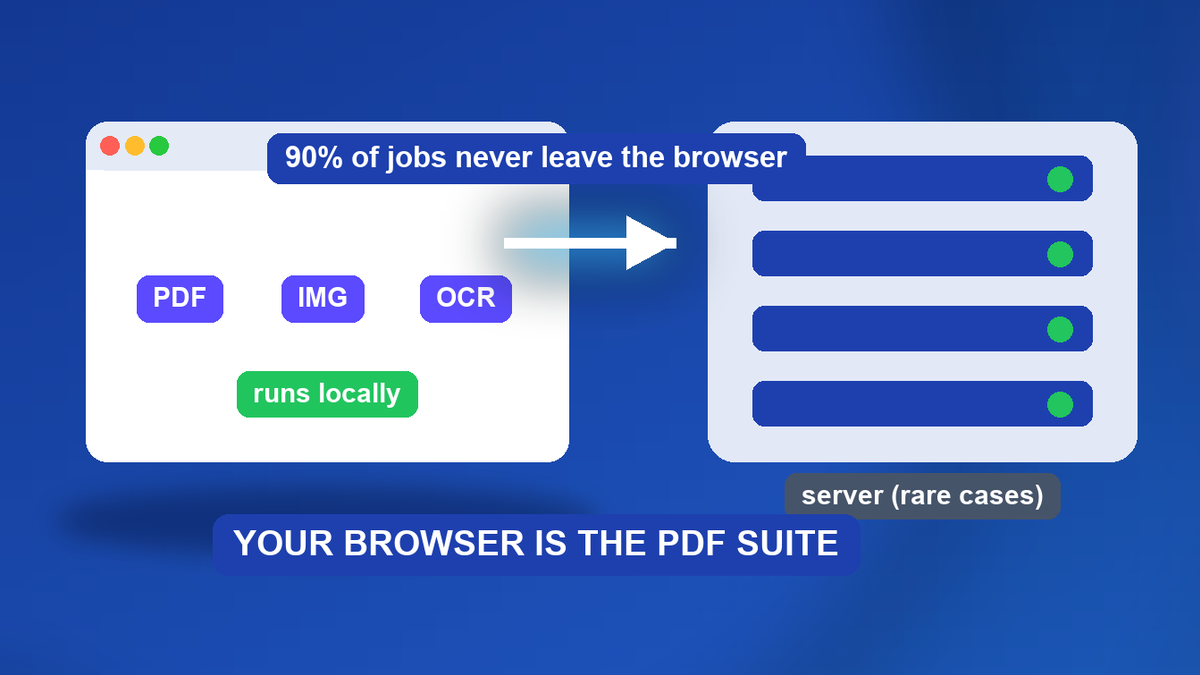
For twenty years, editing a PDF online meant uploading it to somebody else’s computer. That era is ending, and the reason is not a privacy movement — it is that the browser became powerful enough to run the entire PDF engine locally. This article explains what makes that possible, what it changes in practice, and where the old model still earns its keep.
What makes a browser a PDF engine
Three pieces of technology, all running inside the tab:
- pdf.js — Mozilla’s PDF renderer, the same code Firefox uses to display PDFs. It parses the file, decodes the fonts and images, and draws each page to a canvas. This is the "read" half.
- pdf-lib — a document construction library. It opens a PDF’s object tree, copies pages, merges documents, writes form fields, and saves a valid new file. This is the "write" half.
- Canvas and WebAssembly — the pixel layer for image work (compression re-encodes page images; image tools process pictures) and near-native speed for the heavy arithmetic.
PDF Tura’s Merge PDF, Split PDF, Compress PDF, Edit PDF, Fill & Sign PDF and most of its 143 tools run this stack. The file is opened, transformed and saved entirely in JavaScript on your device.
What that changes in practice
- Privacy becomes architectural. An uploaded file exists on the operator’s servers — in storage, logs, maybe backups. A locally processed file never exists anywhere but your device. There is no retention policy to read, because there is nothing retained.
- Speed becomes bandwidth-independent. No upload, no queue, no round trip. A merge of ten small files finishes before a server tool has received the first one. On a train, on hotel Wi-Fi, on a metered connection — the difference is not marginal.
- It works offline. Once the page is loaded, the connection can be cut and the tool still runs. Try that with an upload pipeline.
Where the server still earns its keep
Some jobs genuinely need native server-side binaries or external AI models: Protect PDF, Unlock PDF, and Repair PDF run on PDF Tura's server over HTTPS with temporary files auto-deleted within one hour, while cloud AI tools send submitted text over HTTPS to external AI providers under their own retention policies. Meanwhile, everyday PDF work including merge, split, compress, convert, and OCR PDF runs directly in your browser tab.
How to tell which model a tool uses
Read the page. An honest tool states it plainly — ours print "Runs in your browser" on the tool card, and the few server-side ones say so explicitly. Any tool that is vague about where your file goes is telling you something by not saying it.
The direction of travel
Every browser generation widens the gap: faster JavaScript engines, WASM approaching native speed, bigger memory budgets. The suite that once required an upload now runs on the device you already own — and for confidential documents, that is not a convenience feature. It is the whole point.
Memory budgets, ArrayBuffers, and the real limits of in-tab PDF engineering
Running a complete PDF engine inside a browser tab is constrained by one physical resource: per-tab RAM allocation. Understanding how memory flows inside the tab explains why almost every everyday document finishes instantaneously, and what to do on the rare occasion you feed a browser a 700-page scanned archive.
When you select a file in Merge PDF, Edit PDF, or Compress PDF, zero network sockets open. Instead, the browser's FileReader / Blob.arrayBuffer() API maps the file into a contiguous Uint8Array in JavaScript heap memory:
- Structural page operations (low memory). Tools like Merge PDF, Split PDF, Rotate PDF, and Organize PDF manipulate object references and compressed stream slices without decoding page photographs into raw pixels. Even a 100 MB packet of 200 pages takes only modest heap overhead and completes in a couple of seconds on a laptop.
- Raster and canvas operations (higher memory per page). Tools that inspect or rewrite pixels — Compress PDF, Redact PDF, PDF to PNG, and OCR PDF — render pages sequentially onto an HTML5
<canvas>. A single A4 page decoded at 300 DPI RGBA occupies2480 × 3508 × 4bytes (~34.8 MB of uncompressed pixel memory) while that page is on the easel, before garbage collection reclaims the buffer for the next page. - Mobile vs desktop tab ceilings. Desktop 64-bit browsers typically allow 2–4 GB per tab, whereas mobile Safari and Android Chrome enforce tighter tab memory budgets (~512 MB–1.5 GB). If a huge multi-hundred-page scan stresses an older phone, slicing it into manageable ranges first in Split PDF keeps memory usage flat.
You never have to take any website's privacy claim on faith: press F12 in Chrome, Edge, or Firefox, open the Network tab, drop a confidential contract into Merge PDF or Redact PDF, and watch the request log — zero file payload leaves localhost or your device.
Execution architecture matrix across PDF Tura workflows
Transparency means drawing a sharp line between operations that stay 100% inside your browser tab and the specific tools that require server binaries or external AI providers.
| Task category | Example PDF Tura tools | Execution model | Data & network profile |
|---|---|---|---|
| Page assembly & cutting | Merge PDF, Split PDF, Organize PDF, Extract Pages | 100% Client-side (pdf-lib in tab) | Zero bytes uploaded; works offline once page loads |
| Editing, signing & redaction | Edit PDF, Fill & Sign PDF, Redact PDF, Watermark PDF | 100% Client-side (pdf.js + Canvas + pdf-lib) | Zero bytes uploaded; confidential edits stay in local RAM |
| Compression & PDF OCR | Compress PDF, OCR PDF, PDF to PDF/A | 100% Client-side (Canvas + WASM / Tesseract.js) | Language models cache locally; document never leaves device |
| Encryption & structural repair | Protect PDF, Unlock PDF, Repair PDF | Server-side (native PDF utilities) | Uploaded over HTTPS; temporary server files auto-deleted within 1 hour |
| Image OCR (dual-mode) | Image to Text | Hybrid choice (AI-powered or Browser Private) | Browser mode is 100% offline; AI mode sends image over HTTPS to external vision models |
| Document AI analysis | AI Text Summarizer, Chat with PDF | External AI (HTTPS API) | Extracted text sent encrypted to external AI provider; avoid pasting raw secrets |
Frequently asked questions
What is client-side PDF processing?
The PDF is opened, modified and saved inside your browser using JavaScript libraries — nothing is uploaded. PDF Tura runs most of its tools this way.
Is browser-based PDF processing really private?
Yes, architecturally: the file never leaves your device, so there is no server copy to leak or retain. You can verify it yourself — load the page, disconnect from the internet, and the tools keep working.
Why do some PDF tools still need a server?
A few specialized jobs (native password encryption in Protect/Unlock PDF, server-assisted file repair, and AI writing tools) require server-side libraries or external AI models. Those run server-side with automatic deletion.
Which PDF Tura tools run in my browser?
Merge, split, compress, edit, sign, organize, rotate, watermark, page numbers, QR codes and most utility tools — the tool card states the model for each one before you upload anything.