PDF to Word vs PDF to Excel: Which Do You Need?
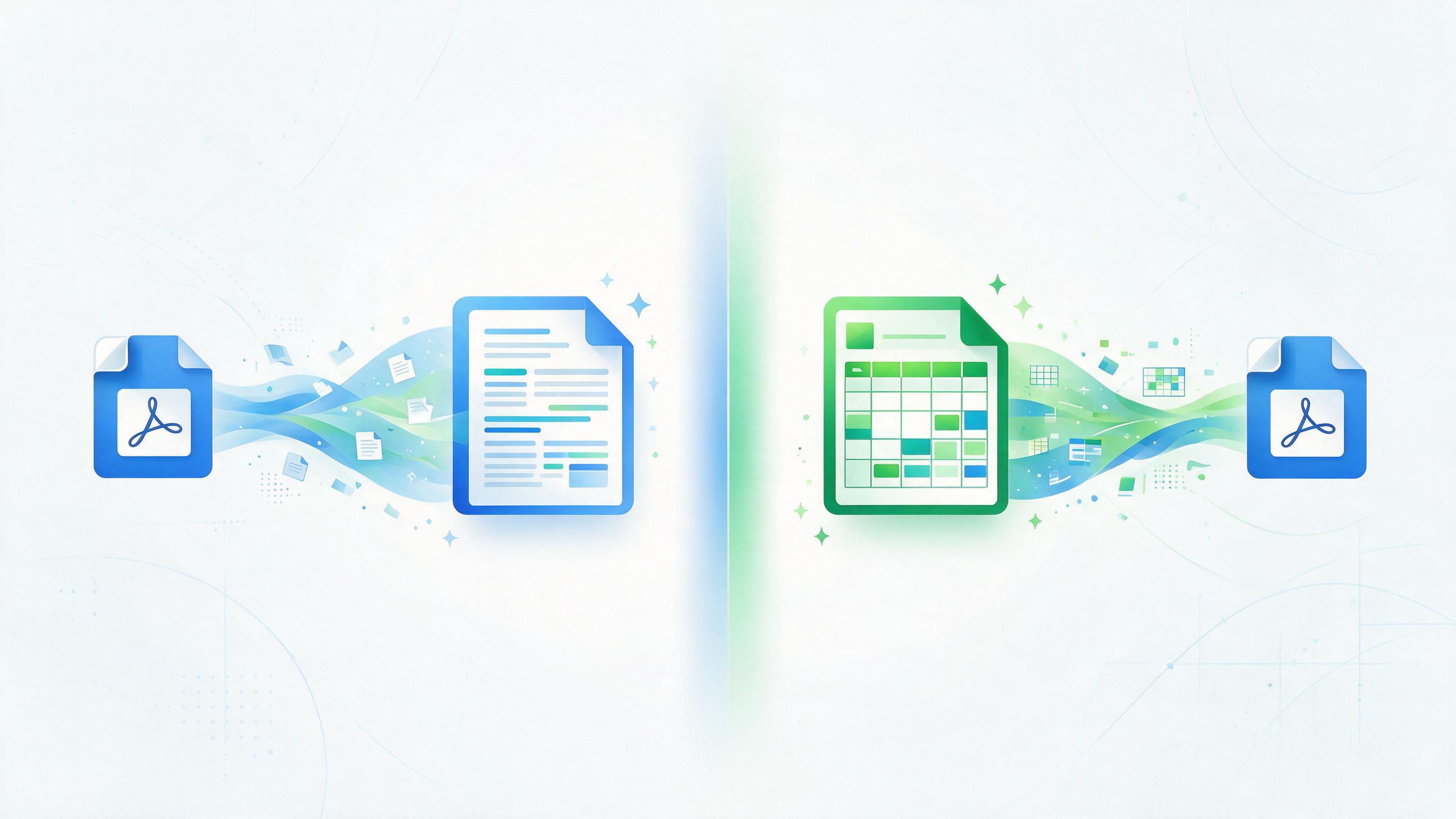
PDF to Word vs PDF to Excel: Which Conversion Do You Actually Need?
You've got a PDF you need to edit, and you're staring at two buttons: PDF to Word and PDF to Excel. They sound similar — both promise to turn a locked, uneditable file into something you can actually work with — but they're built for very different jobs, and picking the wrong one is a common way to waste ten minutes fighting with garbled formatting.
This guide breaks down exactly what each conversion is for, how to tell which one your document needs in a few seconds, and what to expect (and not expect) from the results.
The one-line version
- PDF to Word is for documents made of paragraphs — text you want to read, edit, or rewrite.
- PDF to Excel is for documents made of tables — numbers and rows you want to calculate, sort, or filter.
If you're still not sure, ask yourself: would I open this in a word processor, or a spreadsheet, if I were creating it from scratch? That's almost always the right answer.
PDF to Word: for text-heavy documents
PDF to Word converts a PDF into an editable .docx file — the kind you'd open in Microsoft Word, Google Docs, or LibreOffice Writer.
Use it for:
- Contracts and agreements you need to redline or amend
- Resumes and cover letters you want to update
- Reports, essays, or articles you need to revise
- Letters, memos, and forms with mostly free-flowing text
- Any scanned document where you mainly need the paragraphs back as editable text
What a good conversion preserves: paragraph structure, headings, bold/italic formatting, bullet points, page breaks, and — for most tools — basic image placement. Multi-column layouts (like newsletters or academic papers) are the trickiest case; simpler single-column documents convert far more cleanly.
What to expect if the PDF was a scan: if your original PDF is a photograph or scan rather than a "born-digital" file, the converter needs OCR (optical character recognition) to even find the text before it can turn it into Word content. Quality depends heavily on how clean the scan is — a crisp, well-lit scan converts far better than a blurry phone photo of a document at an angle.
PDF to Excel: for tables and structured data
PDF to Excel does something more specific: it looks for tabular data — rows and columns — inside a PDF and reconstructs them as an actual spreadsheet you can sort, filter, sum, and chart.
Use it for:
- Financial statements and invoices with line items
- Data tables from reports (sales figures, survey results, inventory lists)
- Price lists and catalogs
- Bank or credit card statements you want to categorize in a spreadsheet
- Any PDF where the useful content is really "rows of numbers," even if there's some surrounding text
What a good conversion preserves: row and column structure, so that a table with "Product / Quantity / Price" in the PDF lands in the correct Excel columns rather than as one long jumbled line of text.
Where it struggles: PDF tables don't contain real spreadsheet structure — they're visual grids made of positioned text and lines, not actual cells. A converter has to infer the table shape from that layout. Complex tables (merged cells, multi-row headers, tables that span multiple pages) are harder to reconstruct perfectly than simple, evenly spaced grids. It's normal to need a quick cleanup pass after converting — checking that numbers landed in the right column is worth thirty seconds before you start building formulas on top of the data.
Head-to-head: how to decide in 10 seconds
| Your document is... | Use |
|---|---|
| A resume, letter, contract, or report | PDF to Word |
| A spreadsheet, invoice, or data table | PDF to Excel |
| Mostly text with one small table | PDF to Word (then copy just the table into Excel separately) |
| Mostly a table with a short intro paragraph | PDF to Excel |
| A scanned form with both fields and figures | Try PDF to Word first — most forms are structured as fields, not true tables |
A quick real-world example
Say you receive a quarterly sales report as a PDF. It has a page of narrative summary ("Sales grew 12% this quarter, driven by...") followed by a table of monthly figures by region.
- If you need to quote or edit the narrative — PDF to Word.
- If you need to recalculate totals, build a chart, or sort by region — PDF to Excel.
- If you genuinely need both, the fastest approach is usually to convert the whole thing to Word first for the narrative, and separately run PDF to Excel (or just Extract Pages to isolate the table page first) for the numbers — trying to force one format to handle both jobs at once usually gives a messier result than doing each conversion for what it's actually good at.
What neither conversion does perfectly
It's worth setting expectations honestly: PDF was never designed to be an editable format, so both conversions are doing a kind of reverse-engineering — reconstructing structure from what's essentially a printed page. A few honest limitations:
- Complex layouts lose some formatting. Multi-column brochures, heavily designed pages, and PDFs with lots of overlapping text boxes convert less cleanly than a simple report or letter.
- Merged or irregular tables need review. A table with merged header cells might split unevenly in Excel; always scan a converted table before trusting it for calculations.
- Fonts may substitute. If the original PDF used a licensed or unusual font, the converted document may substitute a similar system font.
- Scanned documents depend on OCR accuracy. A blurry or skewed scan will produce more recognition errors than a clean, straight scan.
None of this means the conversions aren't useful — they save enormous time compared to retyping a document from scratch — just that a quick proofread after converting is a good habit, especially for anything you're about to send back out (a contract, a report) or calculate with (a spreadsheet).
Related tools worth knowing about
- PDF to PowerPoint — if your PDF is actually a set of slides, this converts each page into an editable slide rather than trying to force it into Word or Excel.
- PDF to Text — for when you just want the raw words with no formatting at all, useful for pasting into another tool.
- OCR PDF — run this first on a scanned document to make its text recognizable and searchable, which improves the accuracy of a Word or Excel conversion afterward.
- AI Data Table → CSV — if your "table" is actually messy, inconsistent text rather than a clean grid, this AI tool can reformat it into a proper CSV you can open in any spreadsheet.
- Chat with PDF — if you don't actually need an editable file at all, and just want to ask questions about the content, this skips conversion entirely.
Why it's worth doing this without uploading your file
Both a Word and Excel conversion involve pulling apart the actual content of your document — invoices, contracts, financial statements — the kind of files where privacy actually matters. Where possible, PDFTURA's PDF to Word and PDF to Excel tools handle processing on shared hosting with a best-effort approach and no account required, and any file that needs temporary server processing is auto-deleted within an hour rather than kept indefinitely.
Frequently asked questions
Should I convert a PDF to Word or Excel? Convert to Word for text-heavy documents like contracts, resumes, and reports. Convert to Excel for anything built around rows and columns, like invoices, statements, or data tables.
Does PDF to Excel work on scanned documents? It can, but accuracy depends on OCR quality and how clean the table lines are. A crisp, well-aligned scan converts far more reliably than a blurry or skewed one.
Will PDF to Word preserve my formatting? Basic formatting — paragraphs, headings, bold/italic, bullet points — usually converts well. Complex multi-column layouts are the hardest case and may need manual cleanup.
Is it free to convert PDF to Word or Excel? Yes, PDFTURA's PDF to Word and PDF to Excel tools are free with no sign-up required.
Final thoughts
The choice between PDF to Word and PDF to Excel comes down to one question: are you trying to edit sentences, or calculate numbers? Text-heavy documents — contracts, resumes, reports — belong in Word. Anything built around rows and columns — invoices, financial data, price lists — belongs in Excel. Pick based on what you're about to do with the file next, not just what format the original document happens to be in, and you'll rarely end up with a conversion that needs redoing.
Ready to convert? Try PDF to Word or PDF to Excel — both free, no account required.