Merge, Split, and Compress PDF: The Complete Free Guide (No Uploads, No Sign-Up)
If you work with documents on a regular basis, chances are you deal with the same three PDF headaches over and over: files that need to be combined into one, files that are too big to send, and files that need to be broken apart into smaller pieces. These three tasks — merge, split, and compress — are the most searched-for, most used PDF operations on the internet, and for good reason. They solve real, everyday problems for students, office workers, freelancers, and anyone who has ever tried to email a file only to get bounced back with "attachment too large."
In this guide, we'll walk through exactly when and why you'd use each of these tools, how to do it in seconds, and why doing it in your browser — rather than uploading your files to a random website — matters more than most people realize.
Why merge, split, and compress are the "big three" of PDF tools
Every other PDF operation (adding watermarks, signing, converting formats) tends to be situational. Merge, split, and compress are different — they come up constantly, across almost every profession:
A teacher merging ten scanned worksheets into a single PDF to upload to a learning portal.
A job seeker combining a cover letter, resume, and portfolio into one document before hitting send.
An accountant splitting a 200-page tax filing into individual client sections.
A small business owner compressing a product catalog so it fits under a client's 10MB email limit.
A student shrinking a lecture-note scan so it fits within a university's upload cap.
None of these tasks are complicated in theory, but doing them well — without corrupting formatting, losing quality, or handing your files over to a service that stores them indefinitely — is where things get tricky.
Merge PDF: combining files without the mess
What it does: Merge PDF takes two or more PDF files and stitches them into a single document, in the order you choose.
When you need it:
Combining multiple scanned pages into one file
Assembling a full application packet (resume + cover letter + references)
Merging monthly reports into a single annual document
Putting together a set of invoices for a client
What to look for in a merge tool:
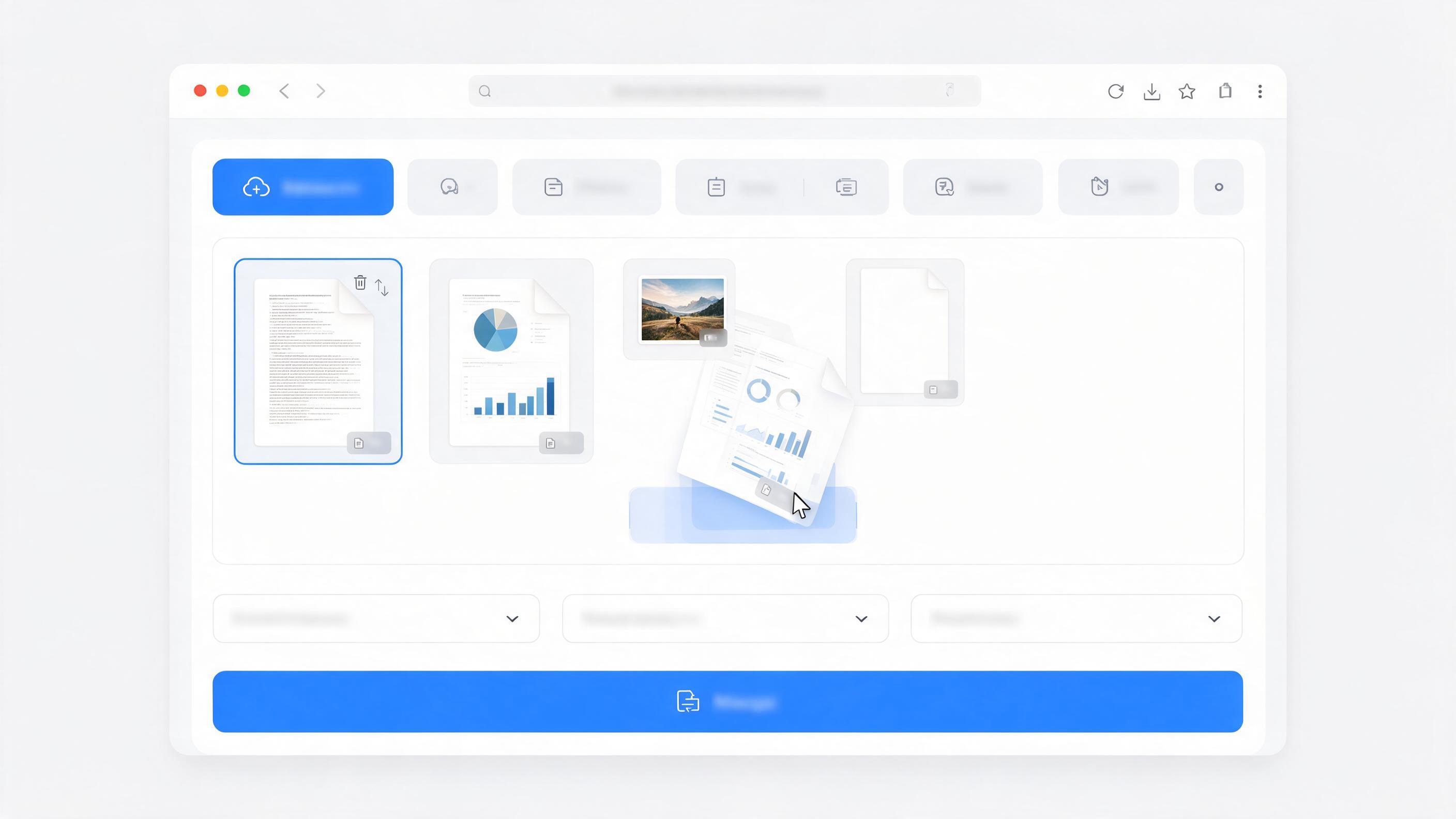
Drag-to-reorder — you should be able to rearrange files before merging, not just append them in upload order.
No page limit — some tools cap you at 5 or 10 pages on the free tier. That's not useful for real work.
No quality loss — a good merge tool doesn't re-render or re-compress your pages; it should preserve the original resolution and searchable text.
Privacy — this is the big one. Merging is often done with sensitive documents (contracts, ID scans, financial records). A tool that processes everything client-side, in your browser, means your files never actually leave your device.
PDFTURA's Merge PDF tool does exactly this: drop in as many files as you want, drag to reorder, and download — all without an upload happening in the background. There's no limit on how many times you can use it, no watermark stamped across your pages, and no account required.
Split PDF: breaking one file into many
What it does: Split PDF does the reverse of merging — it takes one PDF and divides it into separate files, either by page ranges or into individual single-page files.
When you need it:
Extracting a single chapter from a long PDF textbook
Separating a scanned batch of documents into individual files per person or per topic
Breaking up a large contract into sections for different reviewers
Pulling out one invoice from a combined statement
There's a closely related tool worth knowing about too: Extract Pages, which is useful when you know exactly which pages you want (say, pages 4, 7, and 12) rather than splitting the whole document into even sections. And if you just need to remove a few pages rather than split everything, Remove Pages is the faster route.
A common mistake people make: using a desktop PDF editor that requires installing software just to pull out three pages from a document. For a task this simple, a browser-based tool is almost always faster — there's no install, no license, and no waiting on software to open.
Compress PDF: shrinking file size without ruining quality
What it does: Compress PDF reduces a PDF's file size, usually by optimizing embedded images and cleaning up redundant data in the file structure, while keeping the document visually intact.
When you need it:
Getting a scanned document under an email attachment limit (commonly 10–25MB)
Speeding up upload to a job application portal or government form system
Reducing storage space for archived records
Making a portfolio or catalog load faster when shared as a link
The quality trade-off, explained simply: Compression mostly targets images inside the PDF — photos, scanned pages, and embedded graphics — by reducing their resolution or re-encoding them more efficiently. Actual text and vector content (the sharp black letters you read) is rarely affected, since text is usually stored as data, not as an image, unless the PDF is a scan. That's why a compressed PDF of a Word-exported report usually looks identical to the original, while a compressed scan of a photocopied form will show a slightly softer image if you zoom in closely.
A well-built compressor gives you a size reduction that's dramatic on the first pass (PDFs with large images can often shrink by 60–90%) without visibly degrading normal reading or printing quality.
Related tools worth pairing with these three
Merging, splitting, and compressing rarely happen in isolation. A few tools that often get used right alongside them:
Repair PDF — if a file won't open properly before you try to merge or split it, this attempts to recover it first.
Organize / Reorder Pages — for fine-grained page reordering and rotation beyond a simple merge.
Add Page Numbers — handy right after merging several documents, so the combined file reads cleanly from start to finish.
Compress Image — if you're working with the source photos before turning them into a PDF at all, shrinking them first can save a step later.
Why "runs in your browser" actually matters
It's easy to gloss over the phrase "no upload needed" as marketing language, but the difference is real and worth understanding.
When a PDF tool processes your file entirely in your browser (using JavaScript running on your own device), your document never travels across the internet to a third-party server. That means:
No copy of your file sits on someone else's storage, even temporarily.
No risk of a data breach on the tool provider's end exposing your contract, ID scan, or financial statement.
Faster results, since there's no upload/download round-trip — just local processing.
It still works with a shaky connection, since nothing needs to be transmitted.
This matters most for exactly the kinds of documents people merge, split, and compress: tax records, signed contracts, medical forms, resumes with personal information, and business reports. PDFTURA is built around this principle — most tools, including merge, split, and compress, process everything client-side, and the few tools that require server-side processing auto-delete uploaded files within an hour.
A quick workflow example
Here's how these tools might come together in a real task — say, preparing a job application:
Scan your signed cover letter with your phone and convert it using Scan to PDF.
Merge the cover letter, resume, and reference letter into one file using Merge PDF.
Add page numbers with Add Page Numbers so the packet reads clearly.
Compress the final file with Compress PDF so it fits comfortably under the application portal's upload limit.
Four steps, four tools, all free, no account, and no file ever leaves your device along the way.
Final thoughts
Merge, split, and compress are unglamorous tools — nobody gets excited about them the way they might about an AI writer or a flashy design app. But they're the tools people reach for constantly, often under time pressure, and often with documents they'd rather not hand over to a stranger's server. A good PDF toolkit gets these three things right first: fast, free, no watermark, no unnecessary sign-up wall, and processing that respects your privacy by default.
Ready to try them? Start with Merge PDF, Split PDF, or Compress PDF — no account needed, no cost, and no upload required for most files.